k blog.kenaro.com
← All articles

Error in InfoPath web browser form: "An error occured querying a data source."

· Ingo Karstein

Yesterday I changed the Access mode of a SharePoint Web Application to “Only SSL”.

On the Web Application are some browser enabled InfoPath forms. Some of them consume a SharePoint Web Service to query user information. After switching the Web App to HTTPS there was an Error while loading the form in browser.
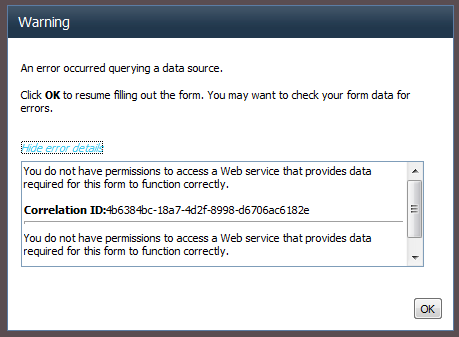
First error message: “An error occured querying a data source.”

Second error message: “You do not have permissions to access a Web service that provides data required for this form to function correctly.”

So far, so good.

I looked into SharePoint Log (with ULSViewer) and found this error message:
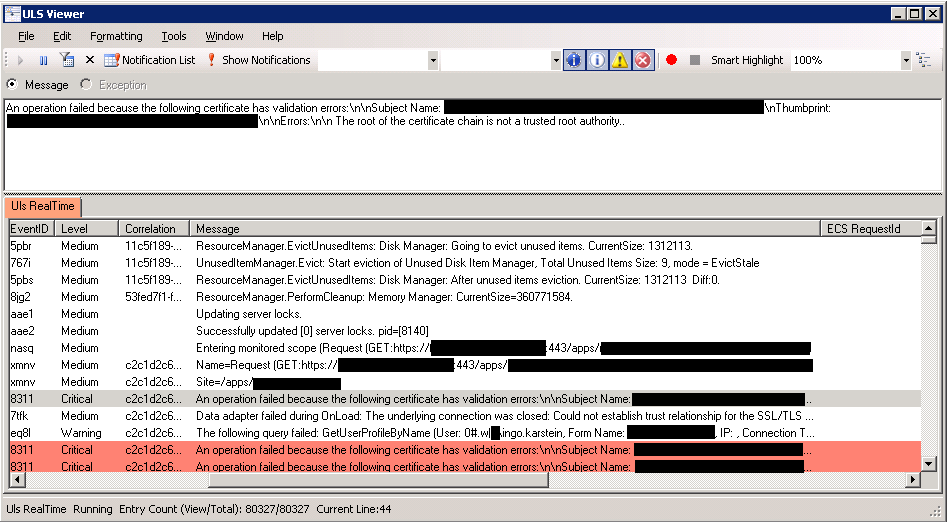
“An operation failed because the following certificate has validation errors:nnSubject Name: CN=sharepoint.localnIssuer Name: CN=domain.local CAnThumbprint: 0102030405060708090a0b0c0d0e0f0102030405nnErrors:nn The root of the certificate chain is not a trusted root authority…

My first thought was that the root of the (new) SSL certificate is not in the Computer Accounts certificate store in “Trusted Root Certification Authorities”.

But it was!

Some dozens of minutes later… ;-) I remembered that there are some SharePoint PowerShell cmdlets for this topic:

Get-SPTrustedRootAuthority
Set-SPTrustedRootAuthority
New-SPTrustedRootAuthority
Remove-SPTrustedRootAuthority

I forgot to register the root CA certificate of the new SSL certificate in the SHAREPOINT Trusted Root Authorities store !!! Grrrr.

The following script solved it:

$cert = Get-childItem cert:localmachineCA102030405060708090a0b0c0d0e0f0102030405
new-SPTrustedRootAuthority -Certificate $cert -Name "domain.local CA"

You need to have the CA certificate in the “Trusted Root Certification Authorities” store of Windows and you have to get it’s “thumbprint”. Just open “certmgr.msc” at the “Run” box from the Start menu of windows.
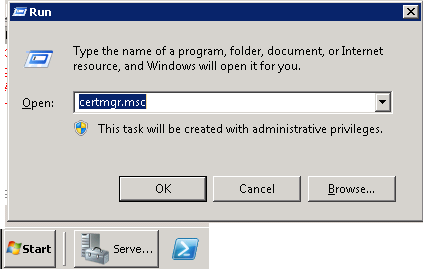
You get:
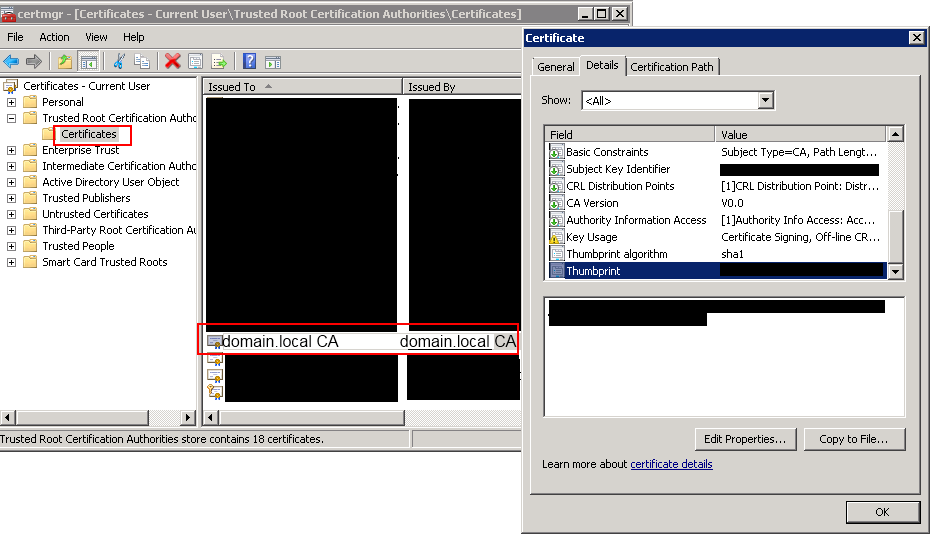
Open “Trusted Root Certification Authorities” -> “Certificates”

Double-click the certificate. In my case (faked) “domain.local CA”.

In the next windows select tab “Details” and look for “Thumbprint”. Insert the hex numbers in the PowerShell script.

That’s it. :-)

8 comments

Kevin Guyer Jul 22, 2011
Well done sir. This was just what I needed.
Kevin Jul 22, 2011
We are getting this exact same error on our test server using the SharePoint Web Service for querying user information. We have recently turned on SSL and it is giving this error for our Go Daddy Secure Certification Authority. As a developer I am new to Administration: Can you decipher this command more on what would need to be changed. I found the Thumbprint Hex Numbers (with spaces in between) and am unsure how to use them in the command and what items in this command are variables local to your environment. I understand that this is just your fake data. $cert = Get-childItem cert:localmachineCA102030405060708090a0b0c0d0e0f0102030405 new-SPTrustedRootAuthority -Certificate $cert -Name "domain.local CA" Thanks
ikarstein Jul 22, 2011
Kevin, the command is pretty simple! the first line reads the SSL certificate object (.NET) from the Windows Certificate Store. The Hex numbers identify the certificate. The second line registers the certificate in SharePoint so that the certificate becomes "trusted". You have to replace the thumbprint (hex numbers) with yours and change the name of the certificate. you find the certificate name in the same dialog as the thumbprint. look for "subject". I hope this helps! Ingo
Sean Sep 27, 2011
What if your Issuer Authority is not in the list of Trusted Root Certification Authorities? In my case, we have certificates that come from Comodo and are issued by InCommon.
Susan Hernandez Nov 29, 2011
Thanks, exactly the error I was experiencing. I will try your solution - I hope it works with Wildcard certs!
nati Mar 21, 2012
hi. i run your command and get Get-ChildItem : Cannot find path 'localmachine??d2c4b0d291d44c1171b361cb3da1fedda86ad4e3' because it does not exist. please advise, nati
ikarstein Mar 22, 2012
nati- the path is not correct. on every machine (server) the path is diffrent. and the "?" are not correct at all!! - you cannot copy the path out of the article!!! regards ingo
David M Oct 23, 2012
One note - 'CA10203...' would actually be 'CA10203' - 'CA' is a part of the path so it needs a following slash. Also, and very cool, you can use the Get-childItem cmdlet to get all the path and identifier info you need, i.e. 'Get-childitem "cert:\*"' or 'Get-childitem "cert:LocalMachineCA\*"'. Once you spot the right cert among the list it's easy to copy/paste the exact thumbprint and subject, bypassing the cert snapin altogether. This is nice for another reason - for my root cert anyway the details dialog gave a correct but unusable thumbprint - one with spaces and lower cases, which aren't normalized by Get-childItem. Such nitpicking... This is a great post! Thank you Ingo! I'd been working on this for a couple of weeks until a coworker sent along this cite. Solved my problems and cleanly to boot!

Leave a comment

Your comment is reviewed before it appears. Your name is shown with the comment; your email is required for moderation but never published.