How to determine current PowerShell session is x86 or x64.
For the execution of SharePoint PowerShell scripts I need to check the execution environment of my PowerShell session to be sure that PowerShell runs as x64 application.
This was a problem because PowerShell does not provide this information itself.
BUT PowerShell is a .NET Application.
There you can check for x86 or x64 by using this static method (in C# or VB.NET):
System.IntPtr.Size
In PowerShell syntax:
[System.IntPtr]::Size
This results in “4” for x86 and “8” for x64. (Without question marks of cource. The result type is int.)
So you can use this in your PowerShell script.
Here I started 2 PowerShell sessions: one x86 and one x64. See the result of the command above:
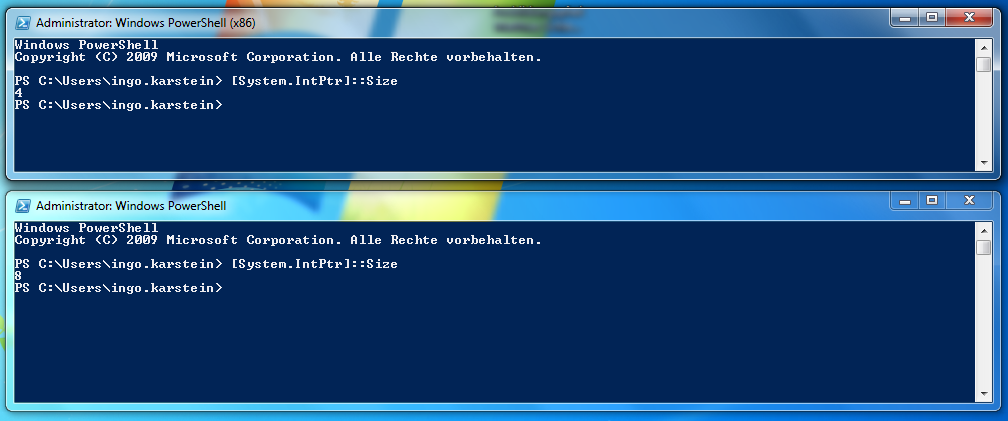
(In the window title you see “Windows PowerShell (x86)” –> That’s the x86 session. The x64 session has no special window title.)
Here is a corresponding PowerShell code snipped:
#region Check x64 host
if( [System.IntPtr]::Size -ne 8) {
  Write-Error "Please use a x64 PowerShell host!"
  return
}
#endregion