k blog.kenaro.com
← All articles

Walkthrough: Creating a simple Sequential Workflow with a custom Task Form in SharePoint 2010 using Visual Studio 2010 (Part 1 of 2)

· Ingo Karstein

In this walkthrough I want to show you how to create a Sequential Workflow with Visual Studio 2010 for use in SharePoint 2010. – I will show how to create a custom Task Form for interaction with users. The Task form will be a native SharePoint list form. No InfoPath. There are many InfoPath samples out there but they cannot be used on a SharePoint Foundation 2010 platform. But workflows can be used on SharePoint Foundation 2010 too!

To reproduce the following steps you need to create a SharePoint site. – In the walkthrough I’ll use a Site Collection located at “http://sharepoint.local/sites/workflow”.

This blog post is part 1 of 2. It describes the steps 1 to 15. Read part 2 here: https://blog.kenaro.com/2011/03/30/walkthrough-creating-a-simple-sequential-workflow-with-a-custom-task-form-in-sharepoint-2010-using-visual-studio-2010-part-2-of-2/

You can download – and help to develop – the whole demo project source code at Codeplex: http://spworkflowdemo.codeplex.com/

(If you need assistance for the deployment process because of deployment errors please see this third post of this series: https://blog.kenaro.com/2011/04/22/walkthrough-creating-a-simple-sequential-workflow-with-a-custom-task-form-in-sharepoint-2010-using-visual-studio-2010-part-3-of-21/)

Let’s start…

1. We create the Site Collection. Use the “Blank Site” site template.
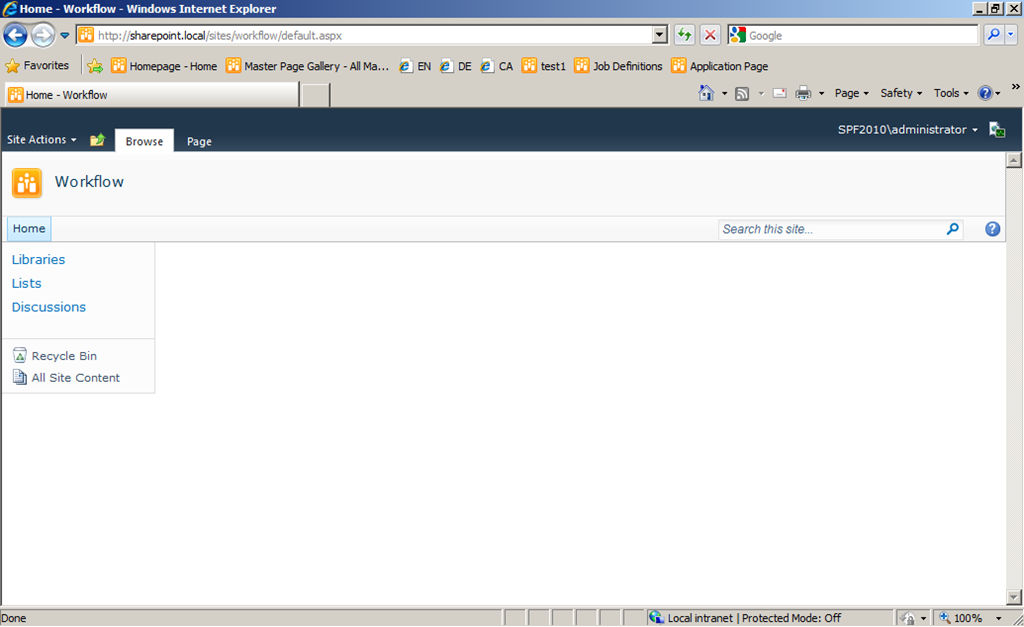
image

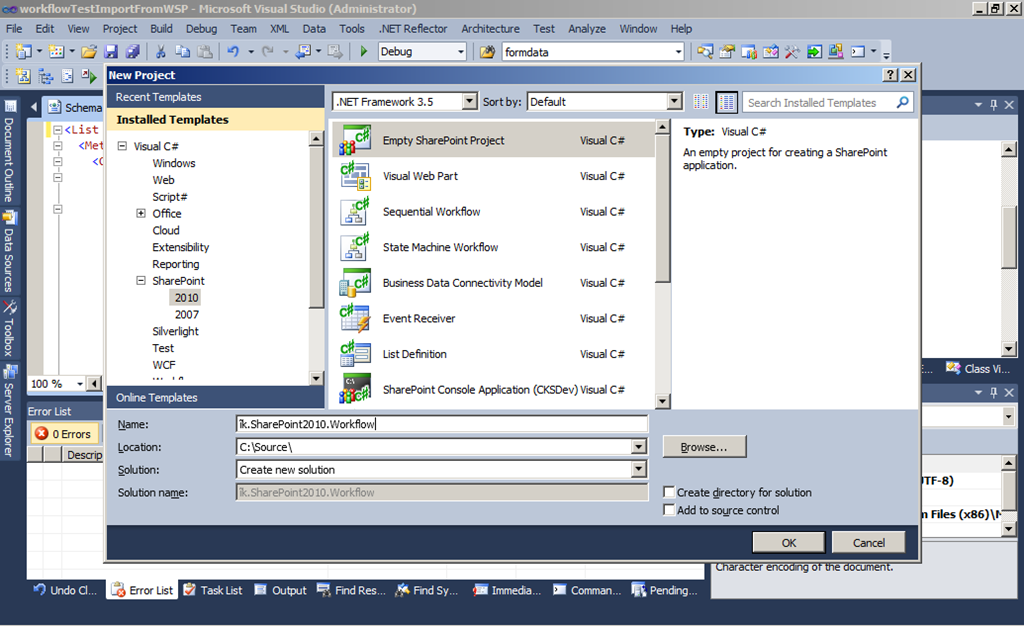
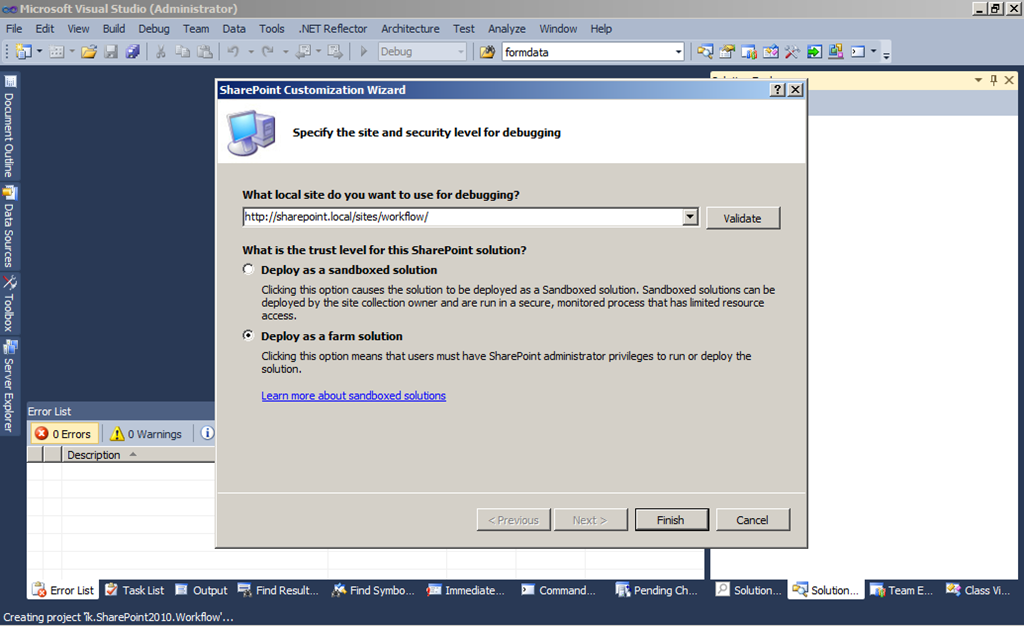
2. In Visual Studio 2010 we create a Empty SharePoint Project. I named it “ik.SharePoint2010.Workflow”

image

We create it with “Deploy as farm solution” and specify the location “http://sharepoint.local/sites/workflow/”.
image

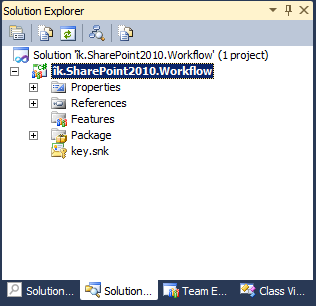
3. This is the project structure at start:
image

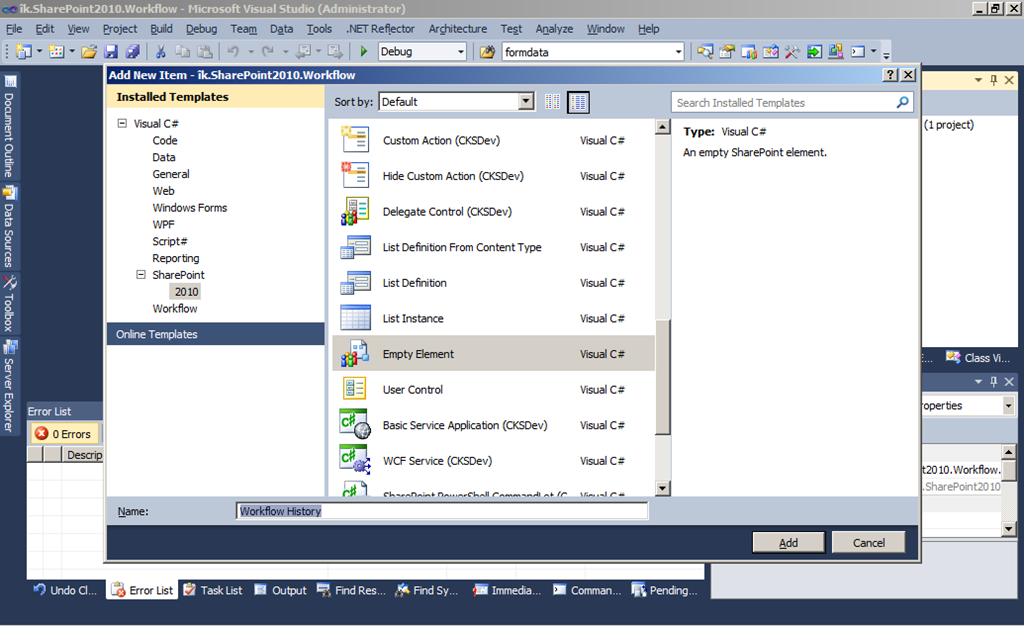
4. First we need to create an instance of the Workflow History list that is needed for the workflow.

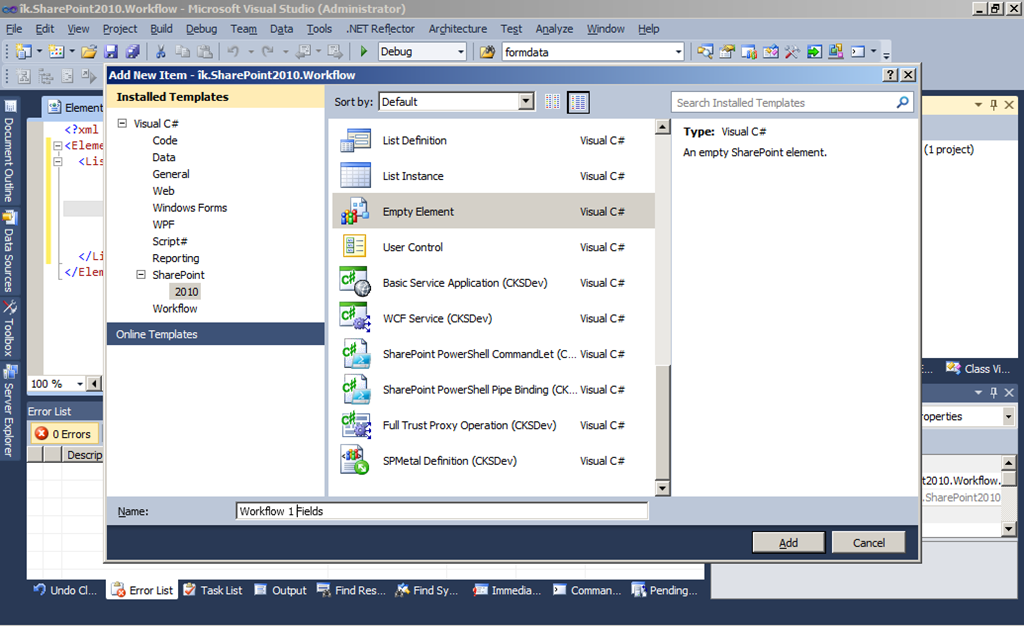
Create a new “Empty Element” project item named “Workflow History”.

image

Open the created “element.xml” file and modify it as shown below.

1: <?xml version="1.0" encoding="utf-8"?>
2: <Elements xmlns="http://schemas.microsoft.com/sharepoint/">
3:  <ListInstance Title="Workflow History"
4:  OnQuickLaunch="TRUE"
5:  TemplateType="140"
6:  FeatureId="00BFEA71-4EA5-48D4-A4AD-305CF7030140"
7:  Url="Lists/WorkflowHistory"
8:  Description="">
9:  </ListInstance>
10: </Elements>

The “TemplateType” attribute represents the “Workflow History” list template. It resists on a SharePoint feature with ID “00BFEA71-4EA5-48D4-A4AD-305CF7030140”. It’s a native SharePoint feature.

You can add the attibute “Hidden” to the “ListInstance” tag and set it’s value to “TRUE” to hide the list as it’s done by SharePoint by default for this list. In this case you should also change “OnQuickLaunch” to “FALSE”. For my demo purpose I want to have “Workflow History” visible and on the Quick Launch bar.
5. Now we will create all tools we need for a “Workflow 1”. (May be I’ll create more workflow demos later. So it’s number 1.)

6. We create the SharePoint fields for “Workflow 1”. Therefore we create another “Empty Element” project item named “Workflow 1 Fields”.

image

I’ll create 3 fields for use in the Task Form we will create: Test1, Test2, Test3. They are all fields of type Text.

1: <?xml version="1.0" encoding="utf-8"?>
2: <Elements xmlns="http://schemas.microsoft.com/sharepoint/">
3:  <!-- Fields for Task 1 of Workflow 1-->
4:  <Field ID="{2FE15855-3CAB-44A6-AB29-1600204FCA20}" Name="Workflow1Task1_Test1"
5:  MaxLength="255" DisplayName="Test1" Description=""
6:  Direction="None" Type="Text" Overwrite="TRUE"
7:  xmlns="http://schemas.microsoft.com/sharepoint/" />
8:  <Field ID="{517B22A5-1B89-4C24-82BE-3D4FD99645BC}" Name="Workflow1Task1_Test2"
9:  MaxLength="255" DisplayName="Test2" Description=""
10:  Direction="None" Type="Text" Overwrite="TRUE"
11:  xmlns="http://schemas.microsoft.com/sharepoint/" />
12:  <Field ID="{3ECFF1FE-F56B-4556-8805-4570D9422FF4}" Name="Workflow1Task1_Test3"
13:  MaxLength="255" DisplayName="Test3" Description=""
14:  Direction="None" Type="Text" Overwrite="TRUE"
15:  xmlns="http://schemas.microsoft.com/sharepoint/" />
16: </Elements>

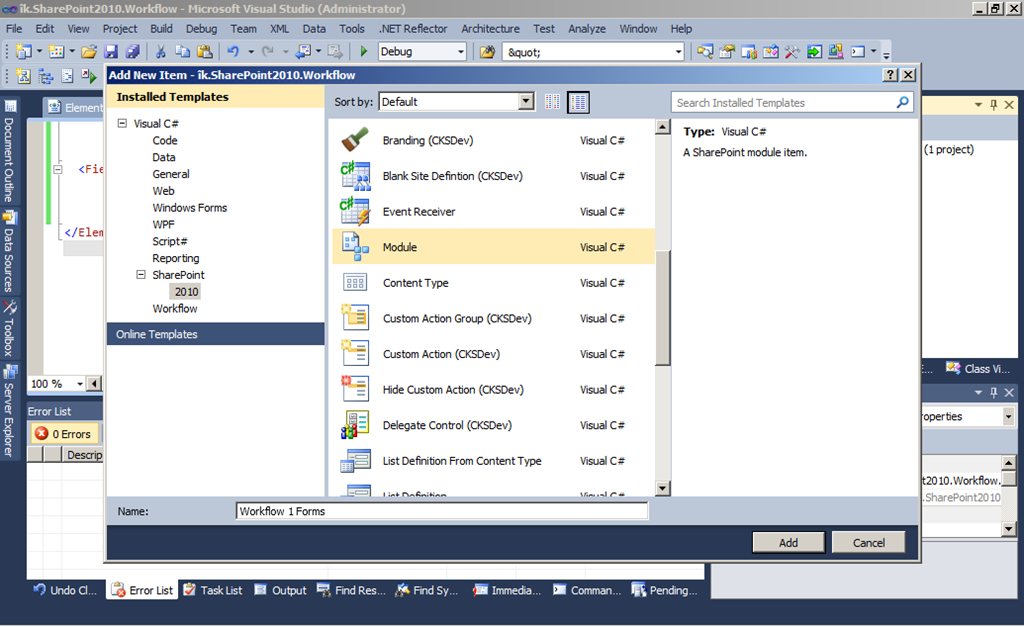
7. Now we create a new “Module” project item named “Workflow 1 Forms”. In this module we will store the Task Form.

image

Remove the “Sample.txt” file from the created module.

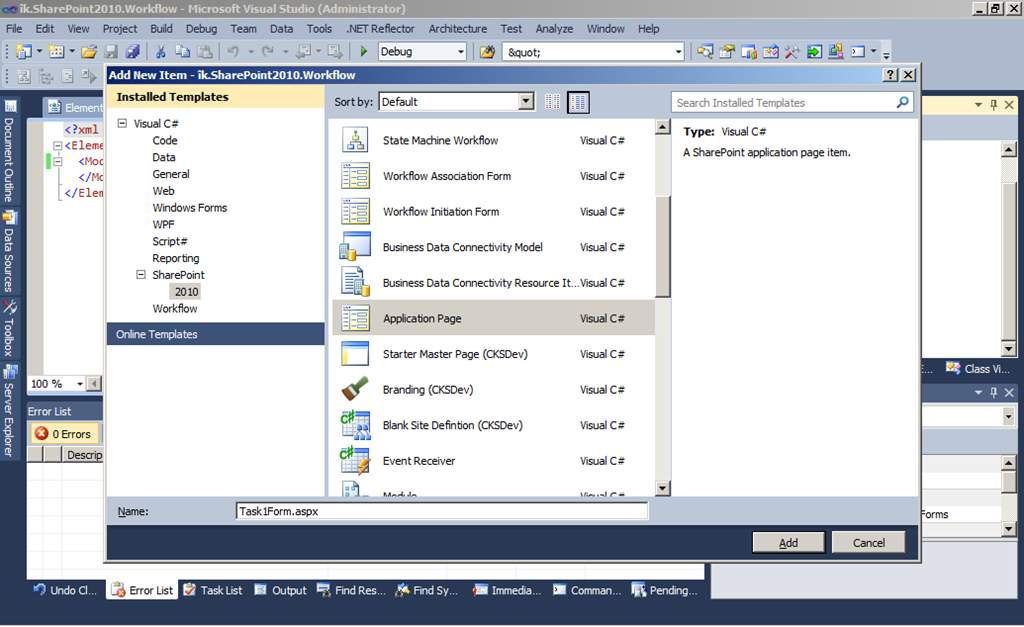
Create a new “Application Page” project item named “Task1Form.aspx”.

image

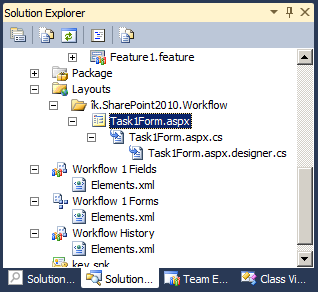
This project item will stored in the folder “Layoutsik.SharePoint2010.Workflow”.

image

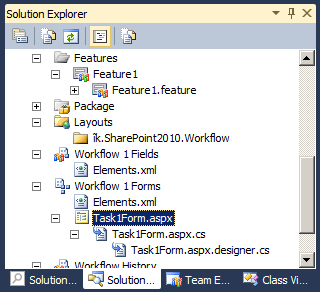
Move the project item “Task1Form.aspx” using Drag & Drop into the module “Workflow 1 Forms”.

image

Remove the “Layouts” folder from the project. It should be empty.
8. We open “Task1Form.aspx”

First we need to edit the “Page” tag of the ASPX site.

1:  <%@ Page Language="C#" AutoEventWireup="true" CodeBehind="Task1Form.aspx.cs" Inherits="ik.SharePoint2010.Workflow.Task1Form" MasterPageFile="~masterurl/default.master"  %>

Now we insert the following code into the “PlaceHolderMain” content placeholder.

1:     <asp:ScriptManagerProxy runat="server" ID="ProxyScriptManager">
2:     </asp:ScriptManagerProxy>
3:     <table width="100%" border="0" cellpadding="0" cellspacing="0">
4:         <tr>
5:             <td valign="top">
6:                 <table cellspacing="0" cellpadding="4" border="0" width="100%">
7:                     <tr>
8:                         <td class="ms-vb">
9:                             &nbsp;
10:                         </td>
11:                     </tr>
12:                 </table>
13:                 <table border="0" width="100%">
14:                     <tr>
15:                         <td>
16:                             <table border="0" cellspacing="0" width="100%">
17:                                 <tr>
18:                                     <td class="ms-formlabel" valign="top" nowrap="true" width="25%">
19:                                         <b>Title:</b>
20:                                     </td>
21:                                     <td class="ms-formbody" valign="top" width="75%">
22:                                         <SharePoint:FormField runat="server" ID="ff4" ControlMode="Display" FieldName="Title" /><br />
23:                                     </td>
24:                                 </tr>
25:                                 <tr>
26:                                     <td width="25%" class="ms-formlabel">
27:                                         <b>Test1:</b>
28:                                     </td>
29:                                     <td width="75%" class="ms-formbody">
30:                                         <SharePoint:FormField runat="server" ID="ff1" ControlMode="Edit" FieldName="Workflow1Task1_Test1" />
31:                                         <SharePoint:FieldDescription runat="server" ID="ff1description" FieldName="Workflow1Task1_Test1"
32:                                             ControlMode="Edit" />
33:                                     </td>
34:                                 </tr>
35:                                 <tr>
36:                                     <td width="25%" class="ms-formlabel">
37:                                         <b>Test2:</b>
38:                                     </td>
39:                                     <td width="75%" class="ms-formbody">
40:                                         <SharePoint:FormField runat="server" ID="ff2" ControlMode="Edit" FieldName="Workflow1Task1_Test2" />
41:                                         <SharePoint:FieldDescription runat="server" ID="ff2description" FieldName="Workflow1Task1_Test2"
42:                                             ControlMode="Edit" />
43:                                     </td>
44:                                 </tr>
45:                                 <tr>
46:                                     <td width="25%" class="ms-formlabel">
47:                                         <b>Test3:</b>
48:                                     </td>
49:                                     <td width="75%" class="ms-formbody">
50:                                         <SharePoint:FormField runat="server" ID="ff3" ControlMode="Edit" FieldName="Workflow1Task1_Test3" />
51:                                         <SharePoint:FieldDescription runat="server" ID="ff3description" FieldName="Workflow1Task1_Test3"
52:                                             ControlMode="Edit" />
53:                                     </td>
54:                                 </tr>
55:                             </table>
56:                         </td>
57:                     </tr>
58:                 </table>
59:                 <table cellspacing="0" cellpadding="4" border="0" width="100%">
60:                     <tr>
61:                         <td nowrap="nowrap" class="ms-vb">
62:                             <asp:Button Text="Save As Draft" runat="server" ID="btnSaveAsDraft" />
63:                         </td>
64:                         <td>
65:                             <asp:Button Text="Complete Task" runat="server" ID="btnComplete" />
66:                         </td>
67:                         <td nowrap="nowrap" class="ms-vb" width="99%">
68:                             <asp:Button Text="Cancel" runat="server" ID="btnCancel" />
69:                         </td>
70:                     </tr>
71:                 </table>
72:             </td>
73:             <td width="1%" class="ms-vb" valign="top">&nbsp;</td>
74:         </tr>
75:     </table>
76:

Now we add some ASP.NET code into the “PlaceHolderPageTitle” content placeholder.

1:     <SharePoint:ListFormPageTitle runat="server" />

Furthermore we add this lines of code into the “PlaceHolderPageTitleInTitleArea” content placeholder.

1:     <span class="die">
2:         <SharePoint:ListProperty Property="LinkTitle" runat="server" ID="ID_LinkTitle" />
3:         : </span>
4:     <SharePoint:ListItemProperty ID="ID_ItemProperty" MaxLength="40" runat="server" />

At least we add the following code into the “PlaceHolderAdditionalPageHead” content placeholder.

1:     <SharePoint:UIVersionedContent UIVersion="4" runat="server">
2:         <contenttemplate>
3:             <SharePoint:CssRegistration Name="forms.css" runat="server"/>
4:         </contenttemplate>
5:     </SharePoint:UIVersionedContent>

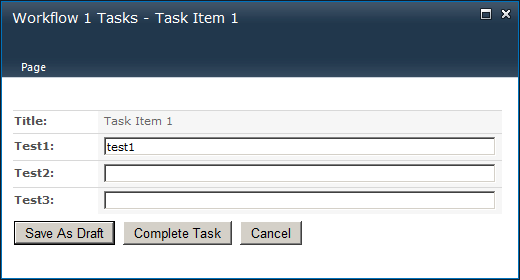
You can see the input fields for the three fields of Task 1. Furthermore you see three buttons. For them we now create some “code behind”.

1: using System;
2: using Microsoft.SharePoint;
3: using Microsoft.SharePoint.WebControls;
4: using Microsoft.SharePoint.Utilities; 
5:
6: namespace ik.SharePoint2010.Workflow
7: {
8:     public partial class Task1Form : WebPartPage
9:     {
10:         protected void Page_Load(object sender, EventArgs e)
11:         {
12:             btnSaveAsDraft.Click += new EventHandler (btnSaveAsDraft_Click);
13:             btnComplete.Click += new EventHandler (btnComplete_Click);
14:             btnCancel.Click += new EventHandler (btnCancel_Click);
15:         }
16:
17:         void btnCancel_Click(object sender, EventArgs e)
18:         {
19:             CloseForm();
20:         }
21:
22:         private void CloseForm()
23:         {
24:             if ( ( SPContext.Current != null ) && SPContext.Current.IsPopUI )
25:             {
26:                 this.Context.Response.Write("<script>window.frameElement.commitPopup();</script>" );
27:                 this.Context.Response.Flush();
28:                 this.Context.Response.End();
29:             }
30:             else
31:             {
32:                 string str = this.Page.Request.QueryString["Source"];
33:                 if ( ( str != null ) && ( str.Length > 0 ) )
34:                 {
35:                     SPUtility.Redirect(string.Empty, SPRedirectFlags.UseSource, this.Context);
36:                 }
37:             }
38:         }
39:
40:         void btnComplete_Click(object sender, EventArgs e)
41:         {
42:             SPList l = SPContext.Current.List;
43:             SPListItem li = SPContext.Current.ListItem;
44:             li[SPBuiltInFieldId.TaskStatus] = "Tasks_Completed";
45:             li[SPBuiltInFieldId.PercentComplete] = 1;
46:
47:             SaveButton.SaveItem(SPContext.Current, false, "" );
48:
49:             CloseForm();
50:         }
51:
52:         void btnSaveAsDraft_Click(object sender, EventArgs e)
53:         {
54:             SaveButton.SaveItem(SPContext.Current, false, "" );
55:
56:             CloseForm();
57:         }
58:     }
59: }

We need to modify the “Elements.xml” file of the module named “Workflow 1 Forms”.

1: <?xml version="1.0" encoding="utf-8"?>
2: <Elements xmlns="http://schemas.microsoft.com/sharepoint/">
3:  <Module Name="Workflow 1 Forms" Url="Workflow1Forms" RootWebOnly="FALSE">
4:  <File Path="Workflow 1 FormsTask1Form.aspx" Url="Task1Form.aspx" />
5:  </Module>
6: </Elements> 

This specifies there to store the “Task1Form.aspx” file in the site structure.

9. In the next step we create the task list that will contain our workflow tasks.

First create a “List Definition” project item named “Workflow 1 Tasks”.

image

Use “Workflow 1 Tasks” as name of the list definition and “Tasks” as base type. Check “Add a list instance…”.
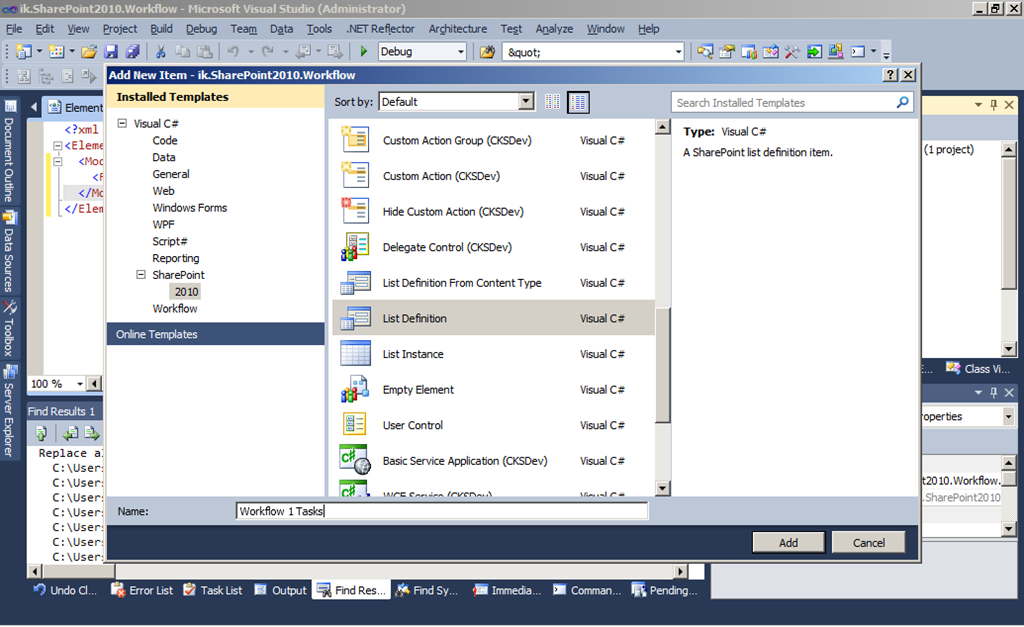
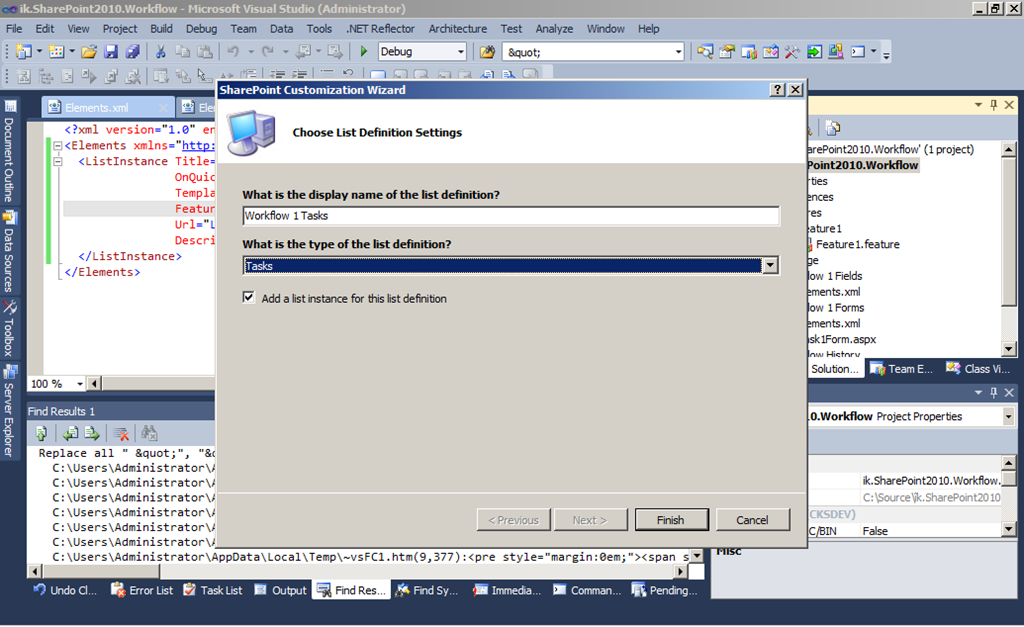
image

10. Now open “Elements.xml” of the new list definition project item.

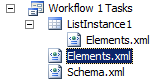
image

We need to change the identifier of the list type we create! – It **must be “**107”. This is the list template ID for workflow tasks lists in SharePoint. The workflow designer will search for a list with this type inside the site where a new workflow will be created.

Here is the content of “Elements.xml” after our modification:

1: <?xml version="1.0" encoding="utf-8"?>
2: <Elements xmlns="http://schemas.microsoft.com/sharepoint/">
3:  <ListTemplate
4:  Name="Workflow 1 Tasks"
5:  Type="107"
6:  BaseType="0"
7:  OnQuickLaunch="TRUE"
8:  SecurityBits="11"
9:  Sequence="360"
10:  DisplayName="Workflow 1 Tasks"
11:  Description="Tasks of Workflow 1"
12:  Image="/_layouts/images/itgen.png"/>
13: </Elements>  

11. Now we modify the “Elements.xml” file of the list instance that will be created during deployment:

image

Here we also need to modify the type identifier to “107”. Furthermore we change the list url: “Lists/Workflow1Tasks”.

Here is the complete content of “Elements.xml”:

1: <?xml version="1.0" encoding="utf-8"?>
2: <Elements xmlns="http://schemas.microsoft.com/sharepoint/">
3:  <ListInstance Title="Workflow 1 Tasks"
4:  OnQuickLaunch="TRUE"
5:  TemplateType="107"
6:  Url="Lists/Workflow1Tasks"
7:  Description="Tasks of Workflow 1">
8:  </ListInstance>
9: </Elements> 

In a “real world” scenario we would prevent the list from being listed on the Quick Launch bar. So the corresponding parameter must be set to “FALSE”.
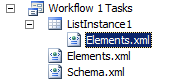
12. Now we need to modify the “Schema.xml” file of the list definition.

image

First we set the list type to “107” and configure some other attributes:

1: <List xmlns:ows="Microsoft SharePoint" Title="Workflow 1 Tasks"
2:  FolderCreation="FALSE" Direction="$Resources:Direction;"
3:  EnableContentTypes="TRUE" VersioningEnabled="TRUE"
4:  Url="Lists/Workflow1Tasks"
5:  Type="107" BaseType="0"
6:  xmlns="http://schemas.microsoft.com/sharepoint/">
7: […]

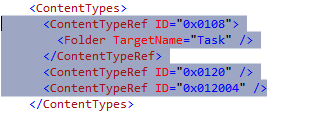
Now remove the the content types defined in the “ContentTypes” tag in the “schema.xml” file.

image

Insert this content type definition into the “ContentTypes” tag:

1:  <ContentType ID="0x01080100FFbc98c2529347a5886b8d2576b954ef"
2:  Name="Workflow 1 Tasks 1"
3:  Group="Workflow 1 Tasks"
4:  Description="Content Type of Tasks 1 of Workflow 1">
5:  <FieldRefs>
6:  <FieldRef ID="{2FE15855-3CAB-44A6-AB29-1600204FCA20}" Name="Workflow1Task1_Test1" DisplayName="Test1" Required="FALSE" Hidden="FALSE" ReadOnly="FALSE" PITarget="" PrimaryPITarget="" PIAttribute="" PrimaryPIAttribute="" Aggregation="" Node="" />
7:  <FieldRef ID="{517B22A5-1B89-4C24-82BE-3D4FD99645BC}" Name="Workflow1Task1_Test2" DisplayName="Test2" Required="FALSE" Hidden="FALSE" ReadOnly="FALSE" PITarget="" PrimaryPITarget="" PIAttribute="" PrimaryPIAttribute="" Aggregation="" Node="" />
8:  <FieldRef ID="{3ECFF1FE-F56B-4556-8805-4570D9422FF4}" Name="Workflow1Task1_Test3" DisplayName="Test3" Required="FALSE" Hidden="FALSE" ReadOnly="FALSE" PITarget="" PrimaryPITarget="" PIAttribute="" PrimaryPIAttribute="" Aggregation="" Node="" />
9:
10:  <FieldRef ID="{c042a256-787d-4a6f-8a8a-cf6ab767f12d}" Name="ContentType" />
11:  <FieldRef ID="{fa564e0f-0c70-4ab9-b863-0177e6ddd247}" Name="Title" Required="TRUE" ShowInNewForm="TRUE" ShowInEditForm="TRUE" />
12:  <FieldRef ID="{c3a92d97-2b77-4a25-9698-3ab54874bc6f}" Name="Predecessors" />
13:  <FieldRef ID="{a8eb573e-9e11-481a-a8c9-1104a54b2fbd}" Name="Priority" />
14:  <FieldRef ID="{c15b34c3-ce7d-490a-b133-3f4de8801b76}" Name="Status" />
15:  <FieldRef ID="{d2311440-1ed6-46ea-b46d-daa643dc3886}" Name="PercentComplete" />
16:  <FieldRef ID="{53101f38-dd2e-458c-b245-0c236cc13d1a}" Name="AssignedTo" />
17:  <FieldRef ID="{7662cd2c-f069-4dba-9e35-082cf976e170}" Name="Body" />
18:  <FieldRef ID="{64cd368d-2f95-4bfc-a1f9-8d4324ecb007}" Name="StartDate" />
19:  <FieldRef ID="{cd21b4c2-6841-4f9e-a23a-738a65f99889}" Name="DueDate" />
20:  <FieldRef ID="{58ddda52-c2a3-4650-9178-3bbc1f6e36da}" Name="WorkflowLink" />
21:  <FieldRef ID="{16b6952f-3ce6-45e0-8f4e-42dac6e12441}" Name="OffsiteParticipant" />
22:  <FieldRef ID="{4a799ba5-f449-4796-b43e-aa5186c3c414}" Name="OffsiteParticipantReason" />
23:  <FieldRef ID="{18e1c6fa-ae37-4102-890a-cfb0974ef494}" Name="WorkflowOutcome" />
24:  <FieldRef ID="{e506d6ca-c2da-4164-b858-306f1c41c9ec}" Name="WorkflowName" />
25:  <FieldRef ID="{ae069f25-3ac2-4256-b9c3-15dbc15da0e0}" Name="GUID" />
26:  <FieldRef ID="{8d96aa48-9dff-46cf-8538-84c747ffa877}" Name="TaskType" />
27:  <FieldRef ID="{17ca3a22-fdfe-46eb-99b5-9646baed3f16}" Name="FormURN" />
28:  <FieldRef ID="{78eae64a-f5f2-49af-b416-3247b76f46a1}" Name="FormData" />
29:  <FieldRef ID="{8cbb9252-1035-4156-9c35-f54e9056c65a}" Name="EmailBody" />
30:  <FieldRef ID="{47f68c3b-8930-406f-bde2-4a8c669ee87c}" Name="HasCustomEmailBody" />
31:  <FieldRef ID="{cb2413f2-7de9-4afc-8587-1ca3f563f624}" Name="SendEmailNotification" />
32:  <FieldRef ID="{4d2444c2-0e97-476c-a2a3-e9e4a9c73009}" Name="PendingModTime" />
33:  <FieldRef ID="{35363960-d998-4aad-b7e8-058dfe2c669e}" Name="Completed" />
34:  <FieldRef ID="{1bfee788-69b7-4765-b109-d4d9c31d1ac1}" Name="WorkflowListId" />
35:  <FieldRef ID="{8e234c69-02b0-42d9-8046-d5f49bf0174f}" Name="WorkflowItemId" />
36:  <FieldRef ID="{1c5518e2-1e99-49fe-bfc6-1a8de3ba16e2}" Name="ExtendedProperties" />
37:  </FieldRefs>
38:  <XmlDocuments>
39:  <XmlDocument NamespaceURI="http://schemas.microsoft.com/sharepoint/v3/contenttype/forms">
40:  <FormTemplates xmlns="http://schemas.microsoft.com/sharepoint/v3/contenttype/forms">
41:  <Display>ListForm</Display>
42:  <Edit>ListForm</Edit>
43:  <New>ListForm</New>
44:  </FormTemplates>
45:  </XmlDocument>
46:  <XmlDocument NamespaceURI="http://schemas.microsoft.com/sharepoint/v3/contenttype/forms/url">
47:  <FormUrls xmlns="http://schemas.microsoft.com/sharepoint/v3/contenttype/forms/url">
48:  <Edit>Workflow1Forms/Task1Form.aspx</Edit>
49:  </FormUrls>
50:  </XmlDocument>
51:  </XmlDocuments>
52:  </ContentType>
53:
54:

You see the “FormUrls” tag? Inside this tag we specify our custom form template we created before.

The new content type is derived from the “Workflow Task” content type 0x010801. – In the “FieldRefs” section we add our fields we need inside the workflow.
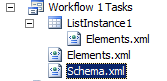
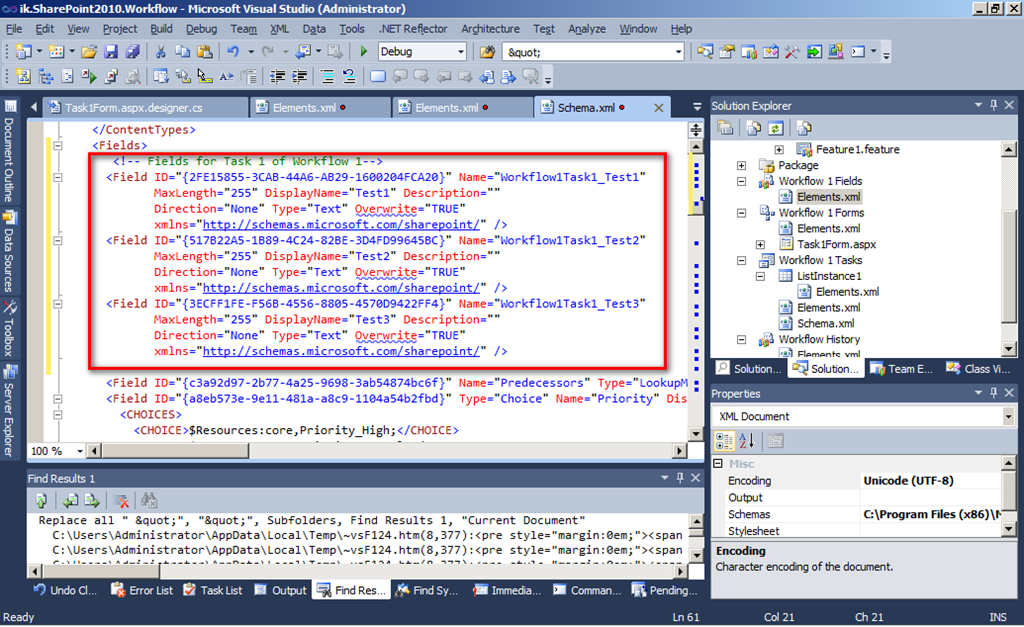
13. Now we need to add the field definitions of our custom fields to the “Schema.xml”. Copy them from the “Elements.xml”  file of project item “Workflow 1 Fields” into the “Fields” tag of “Schema.xml”:

image

Furthermore you need to add a field definition for the field “Completed”:

1:  <Field ID="{35363960-D998-4aad-B7E8-058DFE2C669E}" Name="Completed"
2:  SourceID="http://schemas.microsoft.com/sharepoint/v3"
3:  StaticName="Completed" Group="Base Columns" Type="Boolean"
4:  DisplayName="Completed" Hidden="TRUE" Sealed="TRUE"
5:  Overwrite="TRUE" xmlns="http://schemas.microsoft.com/sharepoint/">
6:  <Default>FALSE</Default>
7:  </Field> 

14. Now deploy the project.

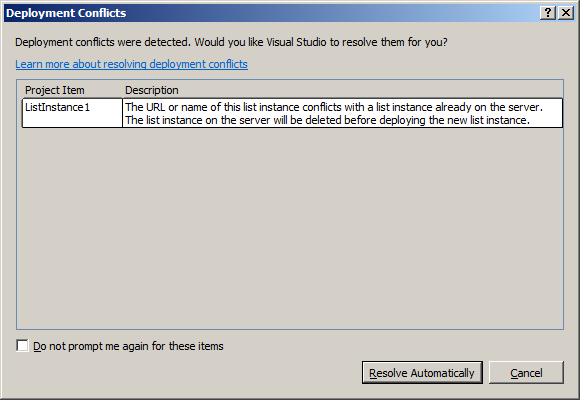
While deployment you may get this dialog:

image

Check “Do not prompt…”. Press “Resolve Automatically”  - it’s your only option Smile.

15. Have a look into the site using the browser. – We will test our “Edit” form. Remember that we did not specify special “New” form or “Display” form. This you could do the same way as you created the “Edit” form.

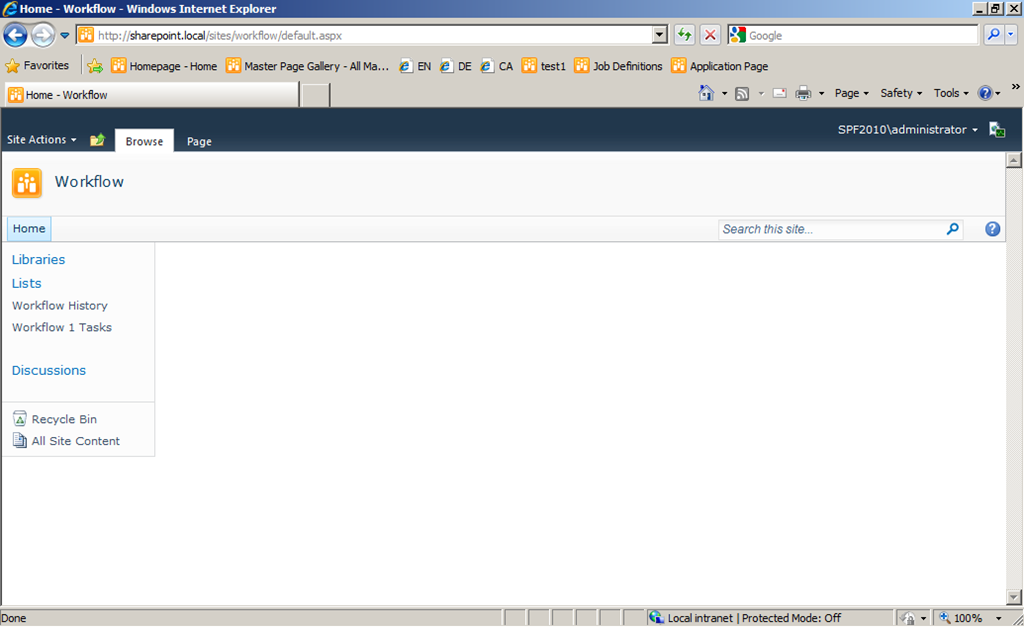
We see our lists in the Quick Launch.

image

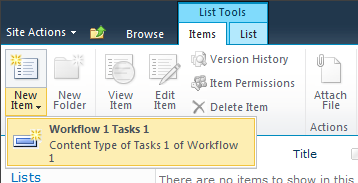
Open the “Workflow 1 Tasks” list. On the Ribbon open the “Items” tab. We see our Content Type in the New Item submenu:

image

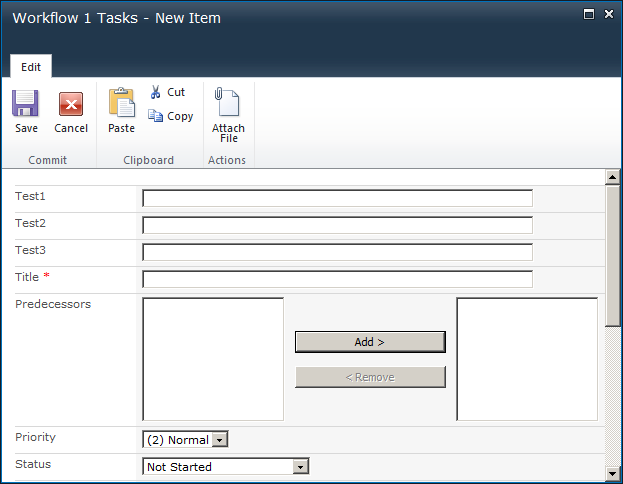
Create an item of this type. You see a standard “New” form and on it you see our three “Test” fields:

image

Enter some data and press  “Save”.

image

Open the item  in “Edit” form. Now you should see our custom list form.

image

If you click “Save As Draft” your changes will be stored in the task item. If you click “Complete Task” two item fields will be changed in addition to the changes made in the form: It sets “Status” to “Tasks_Completed” and ”% Complete” to “100”. You can see this in the Code Behind file of the list form.

Test all buttons.

After “Complete Task”:

image

You see: “% Complete” is set to “100 %”.

So far our projects works as expected.
See Part 2 for the next steps… There I will show you how to create a simple Sequential Workflow that uses our Task Form.

Here is part 2: https://blog.kenaro.com/2011/03/30/walkthrough-creating-a-simple-sequential-workflow-with-a-custom-task-form-in-sharepoint-2010-using-visual-studio-2010-part-2-of-2/

61 comments

Eru Mar 31, 2011
Wow, been looking for this, it's a good tutorial Thank you :)
Eru Mar 31, 2011
Hi Ingo, Manage to follow this walktrough, and it gave me error when I tried to save the task. I am using SharePoint 2010 Enterprise. > "Invalid Yes/No value A Yes/No field contains invalid data. It should be either 1 or 0. Please check the value and try again" After I google a bit, it turns out the error was caused by > > <Default> FALSE </Default> I change it to '0' and the error is gone. Now when I edit the task, it gave me > > Parser Error Message: The attribute 'autoeventwireup' is not allowed in this page. And it also happen to the sample for this article that you've share on codeplex, have any idea why?
ikarstein Mar 31, 2011
Hi Eru, this is strange! - Of course I've tested the solution before I deployed them to Codeplex. For me everything works fine. Did you remove the attribute from the Task1Form.aspx files "Page" tag? Ingo
Eru Jun 22, 2011
Yeah my bad, I forgot to change the aspx :) It's working now. Thanks. I have other question though, How do you send value from Workflow to the form? (I've tried ExtendedProperties but I don't know how to access it inside the form. Do I have to modify the Task Custom Fields directly? And I agree with what Clem said "The only one of it’s kind on the internet and has been particularly helpful"
Eru Jul 1, 2011
Just found out how, I don't realize that we have to use Field Guid to populate the custom-fields using CreateTask ExtendedProperties. So basically to pass value to the custom task we have to use Field Guid on the ExtendedProperties. ``` taskprop.ExtendedProperties[workflowProperties.TaskList.Fields["CustomField"].Id] = "Value" ``` BTW, Thx Ingo :)
ikarstein Jul 1, 2011
You are welcome, Eru :-) Ingo
Clem May 19, 2011
Removing the space before False fixes the problem as well. Should be "FALSE" and not " FALSE"
ikarstein May 26, 2011
Hi Clem! Was it a mistake in my posts or a mistake by yourself ;-) In the first case I'd like to correct the posts. Please write me where to find the mistake. Thanks! - (In the second case: Congratulations for fixing it. It took me hours and hours in the past to solve such problems...) Ingo
Clem Jun 1, 2011
In step 13 in the xml code, the default tag (line 6) has a space before the word FALSE.
ikarstein Jun 9, 2011
Hi Clem, thanks for the information! - I see there are some mistakes like this: Too much spaces. I encountered this error in a post and figured out that the Visual Studio 2010 Extension that I used for Copy'n'Paste was buggy: Spaces in XML node content and attributes, incorrect closing tags in HTML... I've solved the bug in the extension ("code4blog v1.4") but I forgot to fix this post. I'm sorry. I'll do this ASAP. Kind regards Ingo
Clem Jun 9, 2011
No problem at all. This is an awesome blog. The only one of it's kind on the internet and has been particularly helpful.
Railgun May 11, 2011
Any good way to trouble shoot getting a 404 error when you try to edit the task item? Obviously a path mismatch somewhere but everything looks the same every place I look. I used something like this in my forms Elements.xml
ikarstein May 11, 2011
hi railgun! I think it's an incorrect setting in the modules elements.xml file. after you deployed the project have a look into sharepoint designer and go into "all files". you should see the module you deployed in the VS project. I think you have deployed URLs at two points: in the module and in the file definition. in the sharepoint designer you should see that you have "too much" URL parts. Ingo
Railgun May 13, 2011
OK. Now I get this error when I try to build my own forms and edit a Task Item. The project download works fine The file /LeaveRequestWorkflowForms/masterurl/default.master does not exist.
ikarstein May 18, 2011
Do you have a "~" at the beginning of the string value of the attribute "MasterPageUrl" of the "Page" tag of your form?
Louis May 16, 2011
I have implemented your tutorial 1. Strangely, when I want to edit my task, the custom fields do not display their values. When I display the form before clicking Edit button, the values are there. Something wrong?
ikarstein May 18, 2011
Hi! Can you verify that you use the same form on A) select list item -> edit list item or B) select list item -> display list item -> edit list item ??! If it's the same I've no idea! - You could send me the source code, if you like. Please keep me up to date on this! kind regards Ingo
Louis May 18, 2011
I have found the problem. The field names in Workflow Field's Elements.xml do not correspond the names in Schema.xml
ikarstein May 18, 2011
Hi Louis! Thanks for this hint! Have a nice day Ingo
Clem May 19, 2011
Was able to get the task edit form up and save changes. However when clicking the "Complete" button on the edit form, it says the task is locked by a running workflow and cannot be edited. Any ideas?
Clem Jun 9, 2011
I received this error because I changed the status to "Completed" which is one of the valid values for the status column. By using the value you have "TASKS\_COMPLETED", it works. Unfortunately this is NOT a valid value. Microsoft should probably be notified of this bug!
Clem Jun 8, 2011
Can you explain how this solution would change to deploy to a subsite instead of a collection level site?
Clem Jun 8, 2011
What is the field "Completed" used for? Since it is not populated in the code, it just receives a "FALSE" setting and will never be changed. Can this field just be left out? The status is set to "Complete" for the task.
Clem Jun 9, 2011
I think I answered this one. When we built the content type, we inherited from Task and changed the base type to 107. This is because workflow task is a hidden content type. To adapt this new content type to a workflow task content type, this field needs to be included. It's an internal field that is required but not used for our purposes. I am curious why TASKS\_COMPLETED is the value set for status since this is not a valid value in the list of choices for the status field?
Clem Jun 9, 2011
In fact, if you set the value to "Completed" which IS one of the valid values, it blows up. This is really confusing. Not sure how you figured this value out since it is not valid! My task list now shows a value that is not in the list of choices. Nice!
Clem Jun 10, 2011
I'm not really sure how the task status works. When setting the value in the code behind, it's set to "TASKS\_COMPLETE" which populates the actual value on the take with "TASKS\_COMPLETE". I think the objective is to use the RESOURCE:CORE TASKS\_COMPLETE variable which has a value of "COMPLETE". Ideally, the value of the status column would be "COMPLETE" and not "TASKS\_COMPLETE" since this is not valid. Any ideas on how to reference the $resources:core TASKS\_COMPLETE variable value?
Nico Sep 8, 2011
I am getting a "page not found" error. I have checked the path in my element.xml in my module and everything seems to be ok. Any Idea how I can troubleshoot this? Thanks.
ikarstein Sep 13, 2011
Please check the 14-hive in the file system and search the page in the site structure with SharePoint Designer 2010. - Can you find the page? Can you access them by specifying the page url in the browser directly?
Alex Sep 13, 2011
Great tutorial! Thanks. Please fix ” FALSE” to “FALSE”. And in step 8 codebehind has parasite ' symbol in line this.Context.Response.Write("window.frameElement.commitPopup();" );
ikarstein Sep 13, 2011
Thank you, Alex! - I've fixed this!
Nico Sep 13, 2011
I keep getting "file not found" error when I try to open the edit form. Any Idea of what could it be?? Thanks.
ikarstein Sep 13, 2011
Please check your "Module" project item. (Step 8). There must be a wrong definition for that. You should check the 14-hive in the file system whether the form is there. Also check the file with SharePoint Designer 2010!
Nico Sep 16, 2011
I have checked all that and everything looks OK. I was able to solve this issue, removing the MasterPage atrribute from the page tag. But doing so, causes the lossing of all the css and all the content templates
Andrew Sep 19, 2011
I am getting error while opening the edit form: The file /sites/workflow/Workflow1Forms/masterurl/default.master does not exist. Here is my Page directive: Any ideas?
ikarstein Sep 20, 2011
Hi! - I can't see the Page tag in your comment... - Please check it againt the source code I've published. I think the MasterPageFile attribute is wrong. Do you have a "~" before "masterurl/default.master" = "~masterurl/default.master"?
Keyur Dec 5, 2011
Thanks for The Detailed Information. Just a Question , Why can't we design form in SPD and create User Controls for Buttons ? I think that would be easier and saves lot of time. \- Keyur
Tom Jan 2, 2012
Thanks for your really helpful posts Ingo Like several of your readers, I also had the problem with the 404 error "The file /sites/workflow/Workflow1Forms/masterurl/default.master does not exist.". I spent quite a bit of time checking the code before giving up. Eventually I took one of your readers' tips to override the OnPreInit method to the Task1Form class, which resolved the problem very simply: protected override void OnPreInit(EventArgs e) { base.OnPreInit(e); this.MasterPageFile = SPContext.Current.Web.MasterUrl; } Also, as I think Clem remarked, I received the error "This task is currently locked by a running workflow and cannot be edited". This happened when I had saved the task as a "draft" before marking it as "complete". There are various posts about this problem (for example http://blogs.technet.com/b/meamcs/archive/2011/03/26/workflow-error-this-task-is-currently-locked-by-a-running-workflow-and-cannot-be-edited.aspx) from which it seemed that the easy fix was to add a line to the btnComplete\_Click method: void btnComplete\_Click(object sender, EventArgs e) { SPList l = SPContext.Current.List; SPListItem li = SPContext.Current.ListItem; //Next line is a kludge to prevent 'This task is currently locked by a running workflow and cannot be edited' error li\[SPBuiltInFieldId.WorkflowVersion\] = 1; ...etc Which solved the problem Now onto Part 2...
kd Jan 24, 2012
Hi For the error, "This task is currently locked by a running workflow and cannot be edited", you might not be able to use it in part 2 because OnTaskChanged activities NOT to be triggere.
Tom Jan 25, 2012
Yes you are quite correct Kd :-) I have subsequently added a comment to that effect in part 2
kd Jan 19, 2012
Hi, I got this error, "Task is currently locked by a running workflow and cannot be edited", when I tried to edit the task form the 2nd time. The 1st time I press the save as draft button, it works. The 2nd time i clicked on it, this error comes up. Do you have any idea? Thanks. KD
olga Feb 14, 2012
Thank you!
NS Mar 15, 2012
Hi ikarstein, nice article, i hav jst implemented this.. but i get an Error like : " is not a valid identifier. i had followed as u mention in ur project. i'l check twice the code.. But im unable to fix..
NS Mar 15, 2012
its NS again.. this error occur when an item is edited in list.
Christian Baer Mar 15, 2012
Great post. Helped me a lot! For people that create a Site Content Type instead of a List Content Type: Make sure you have not set Inherits="TRUE" in the ContentType definition. Otherwise, the FormUrls Element will not be used and you will still get the default form when editing the Task.
Suresh Rathinasamy Mar 16, 2012
Nice Post,I can able to create Task Edit form through visual studio Thanks!!!
amir Mar 26, 2012
Thank you
Suresh Rathinasamy Mar 28, 2012
HI ikarstein Thanks for this post I have three level of Approvers 1)Users 2)Reviewers 3)Approvers Your document works fine for first level(Users),When I completed the first level automatically workflow completed I need to go second level,Can you please help me Thanks, Suresh.
phu dang May 26, 2012
Hi ikarstein, Thanks for good article, however, when I grant permission for a user with contribute permission on this task item, this user has limited access permission on this site, then this user just be view this task item and cannot edit this task item, when user edit this task item then a error message "Error: Access Denied" will be displayed. Could you give me some solutions to solve it. Thanks, Phu Dang.
Bob Jul 25, 2012
It would have been nice if there was the option to copy and paste code elements without having the line numbers.
Bob Jul 25, 2012
I should have said this earlier: Thank you for taking the time to bring this to us. It is greatly appreciative.
kashek85 Aug 9, 2012
Reblogged this on My Sharepoint Experiences and commented: One good Article to start custom workflows
QROPS Pensions Aug 20, 2012
Hi! Through this posting you sum up a bunch of of the more significant ideas... Simple to read and inclusive of very helpful know-how! Thanks for sharing Walkthrough: Creating a simple Sequential Workflow with a custom Task Form in SharePoint 2010 using Visual Studio 2010 (Part 1 of 2) « Ingo Karstein's Blog!
Kabiriel Sep 18, 2012
i want to have taskform with approve,reject,cancel,reassign in aspx page with workflow how is this possible.i need solution for this immediately
Keni Adewusi Dec 18, 2012
Alas! The 404 is a problem from the Elements.xml of the Form Module. `Path="Workflow 1 Forms/Task1Form.aspx" Url="Workflow 1 FormsTask1Form.aspx"` I must say you have one of the most useful sharepoint 2010 blogs on the internet :)
F. Mar 15, 2013
Closing task is much better this way: SPList l = SPContext.Current.List; SPListItem li = SPContext.Current.ListItem; li\[SPBuiltInFieldId.Completed\] = "TRUE"; li\[SPBuiltInFieldId.TaskStatus\] = SPResource.GetString(new CultureInfo((int)li.Web.Language, false), "WorkflowTaskStatusComplete", new object\[0\]); li\[SPBuiltInFieldId.PercentComplete\] = 1; SaveButton.SaveItem(SPContext.Current, false,""); CloseForm();
Dmitrii Apr 9, 2013
Can you tell why you use SaveButton.SaveItem(..) method instead of item.SystemUpdate(...) ?
Stephanie Jun 27, 2013
Hi, Is someone can help me with an issue with buttons. I can't deploy my project because I got three errors that telling me: Error 1 The name 'btnSaveAsDraft' does not exist in the current context Error 2 The name 'btnComplete' does not exist in the current context Error 3 The name 'btnCancel' does not exist in the current context Thank you
Give Me A Code Feb 27, 2014
Hi Profi! how did u get that FIELD ID values in step 6 for task fields: <Field ID="{2FE15855-3CAB-44A6-AB29-1600204FCA20}" Name="Workflow1Task1\_Test1"
Prabhakar Jun 27, 2014
Going to start samples which i found in this website
david Nov 10, 2014
the image can't be displayed??
ikarstein Mar 5, 2015
they are back. sorry :-(

Leave a comment

Your comment is reviewed before it appears. Your name is shown with the comment; your email is required for moderation but never published.