k blog.kenaro.com
← All articles

Walkthrough: Creating a simple Sequential Workflow with a custom Task Form in SharePoint 2010 using Visual Studio 2010 (Part 2 of 2)

· Ingo Karstein

In this walkthrough I want to show you how to create a Sequential Workflow with Visual Studio 2010 for use in SharePoint 2010. – I will show how to create a custom Task Form for interaction with users. The Task form will be a native SharePoint list form. No InfoPath. There are many InfoPath samples out there but they cannot be used on a SharePoint Foundation 2010 platform. But workflows can be used on SharePoint Foundation 2010 too!

To reproduce the following steps you need to create a SharePoint site. – In the walkthrough I’ll use a Site Collection located at “http://sharepoint.local/sites/workflow”.

This blog post is part 2 of 2. It describes the steps 16 to 27. Read part 1 here: https://blog.kenaro.com/2011/03/30/walkthrough-creating-a-simple-sequential-workflow-with-a-custom-task-form-in-sharepoint-2010-using-visual-studio-2010-part-1-of-2/

You can download – and help to develop – the whole demo project source code at Codeplex: http://spworkflowdemo.codeplex.com/

(If you need assistance for the deployment process because of deployment errors please see this third post of this series: https://blog.kenaro.com/2011/04/22/walkthrough-creating-a-simple-sequential-workflow-with-a-custom-task-form-in-sharepoint-2010-using-visual-studio-2010-part-3-of-21/)

Let’s start (again)…

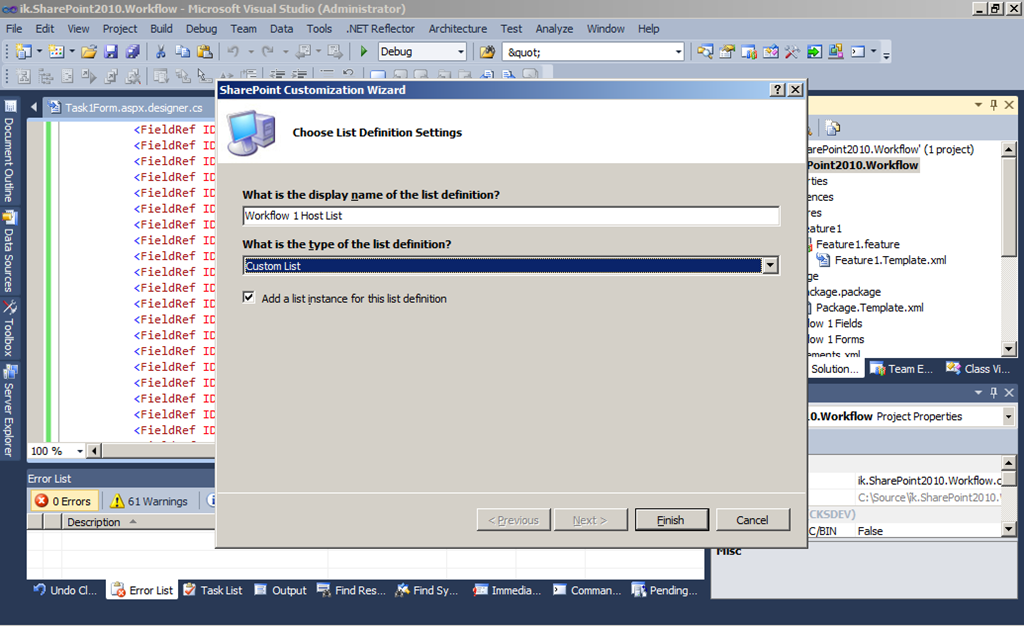
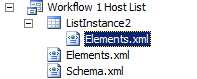
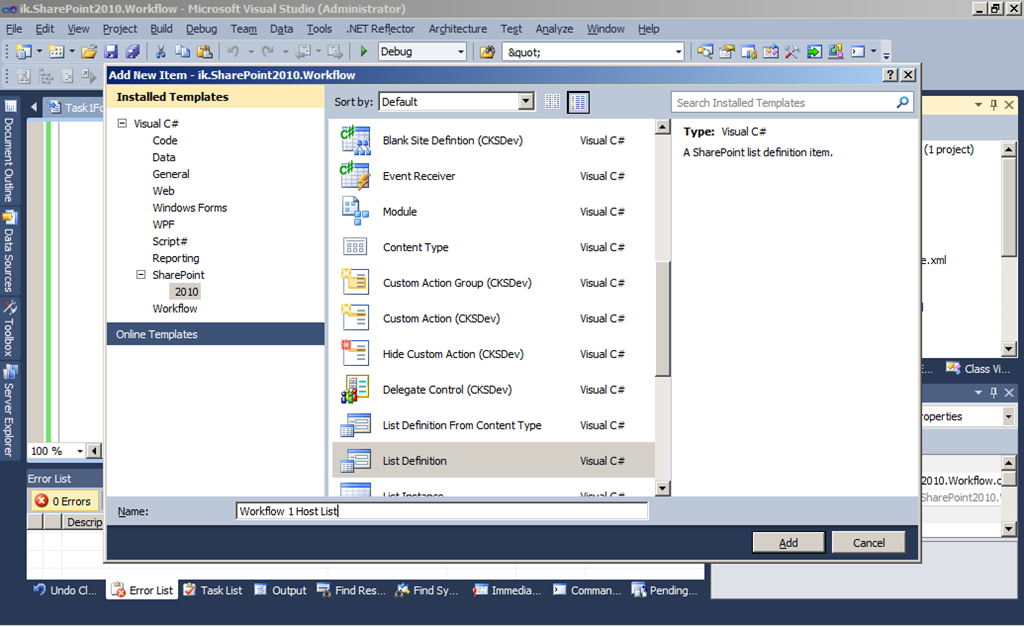
16. Now we need to add a list that we use to connect a workflow with. We create a “List Definition” project item named “Workflow 1 Host List”.

image

image

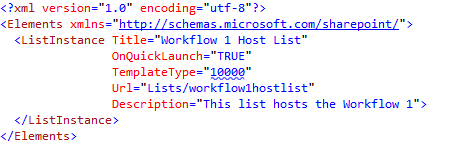
We change the “Elements.xml” file of the List Instance project item.

image

We change the Title, URL and Description.
image

17. Deploy the project.

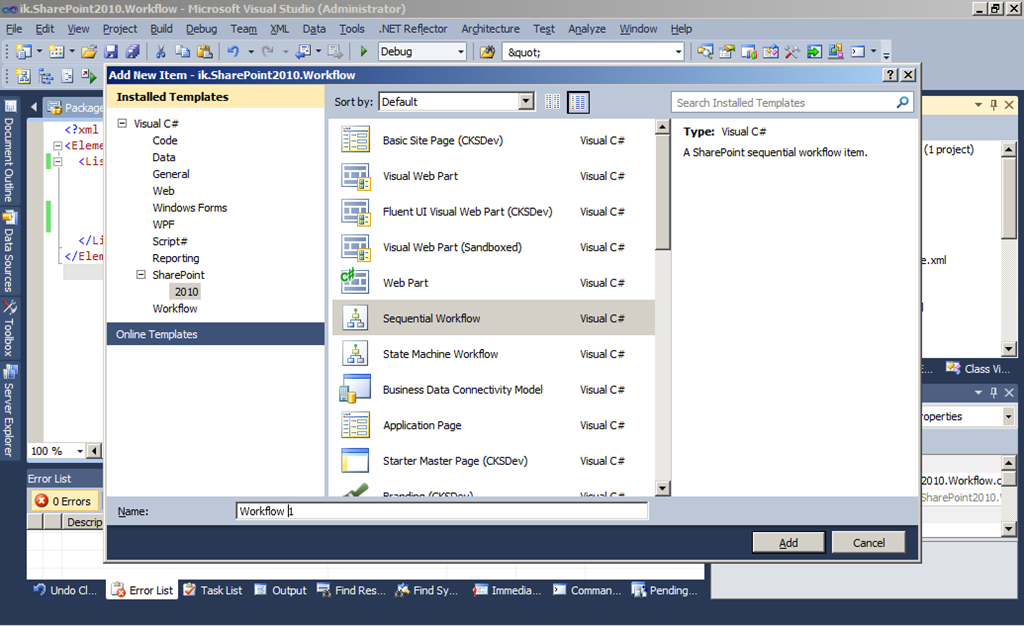
18. Now we start creating a Sequential Workflow.

Create a “Sequential Workflow” project item named “Workflow 1”.

image

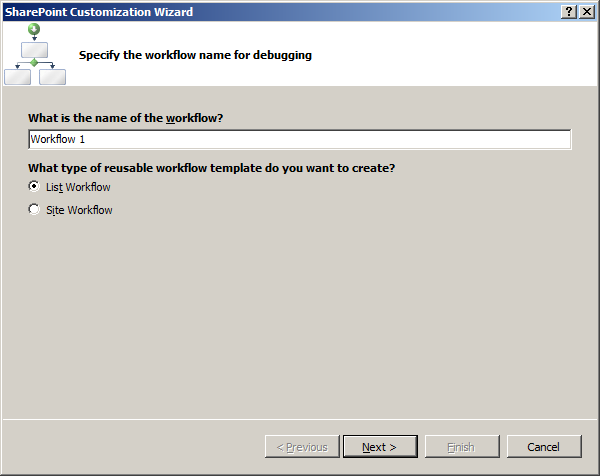
Create the workflow as “List Workflow”.

image

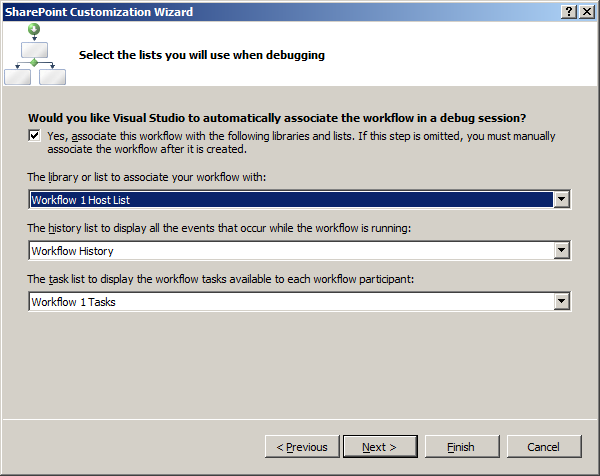
You will see all the lists we created in the previous steps. Remember: You have to (successfully) deploy the project before you can use the lists that will be created during deployment. – Without previous deployment the wizard may fail before you see the following dialog page.

In the first dropdown list choose “Workflow 1 Host List”. All other lists should be selected automatically because there is only one usable list of every needed type.

image

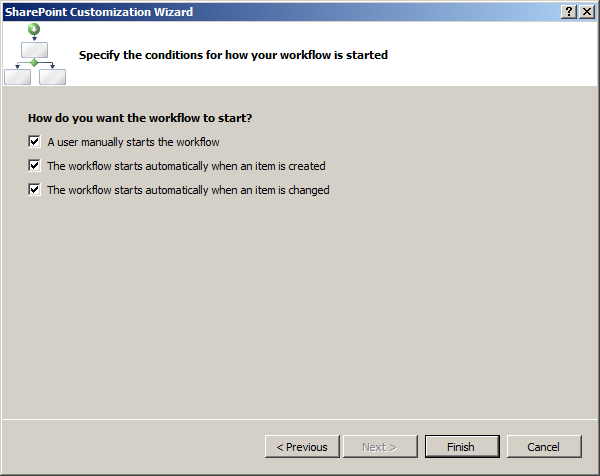
Select all “Workflow start” options: “Manually”, “Item Created”, “Item Updated”.

image

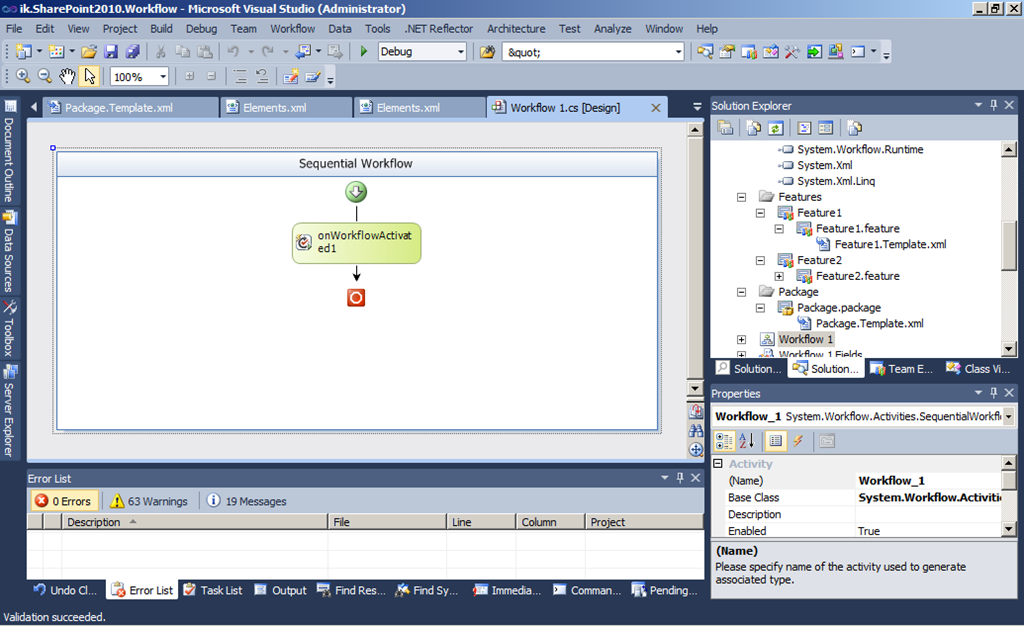
You get:

image

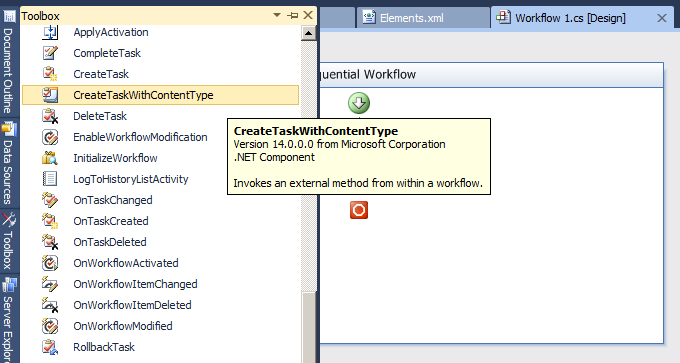
19. We will add a “Create Task With Content Type” workflow activity that will use our “Workflow 1 Task 1” we created in the steps 1 to 15 (blog post “part 1”).

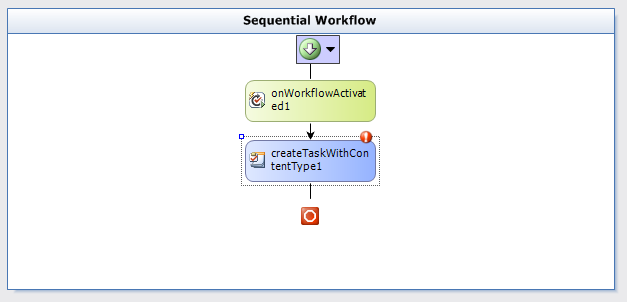
Open the “Toolbox” pane and drag “CreateTaskWithContentType” into the Workflow Designer.

image

After you did this you get:

image

Now we need to configure the workflow activity in the “Properties” pane.

Set “correlationToken” to “task1” and the sub element of “correlationToken” named “OwnerActivityName” to “Workflow_1”.

image

Now we need to create code behind properties for some activity properties. As example I’ll show how to create a code behind property for “ContentTypeId”.

Click on the Button “…” at the activity property edit box:

image

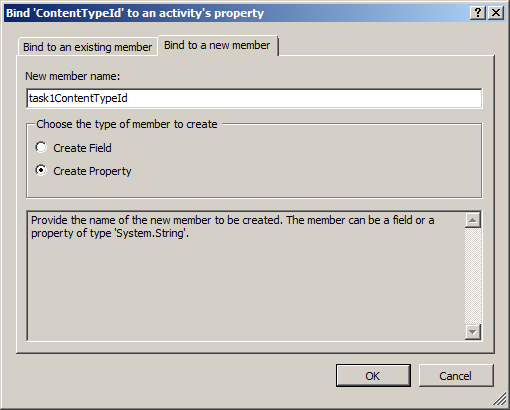
In the dialog select the tab “Bind to a new member”. Enter the name “New member name” and select the “Create Property” radio button. Press “OK”.

image

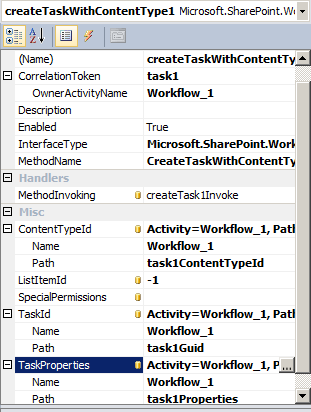
Here are the property bindings you need to create:

  • “ContentTypeId” = “task1ContentTypeId”

  • “TaskId” = “task1Guid”

  • “TaskProperties” = “task1Properties”

In “MethodInvoking” type “createTask1Invoke” and press ENTER. – You’ll be directed to the code editor.

(The activity properties look like this after you finished: image)

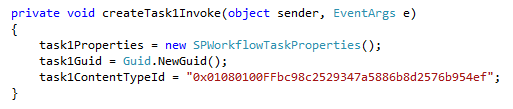
In the method we initialize the task1-Properties we created before. The “ContentTypeId” is taken from the “Schema.xml” file of our “Workflow 1 Tasks” list where we created the Content Type “Workflow 1 Task 1”.

After that your method looks like this:
image

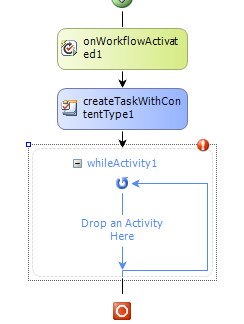
20. Back in the workflow designer. We drag a “While” activity from the Toolbox pane into the workflow behind the “Create Task” activity.

image

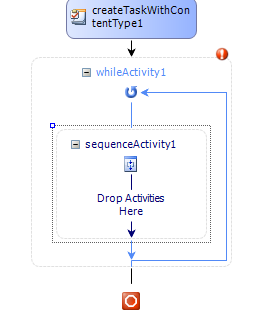
Into the “While” activity we drag a “Sequence” property from the Toolbox pane. We get:

image

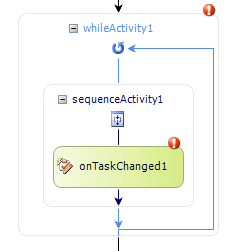
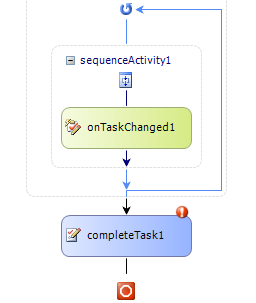
Into the “Sequence” activity we drag a “OnTaskChanged” activity from the Toolbox pane. We get:

image

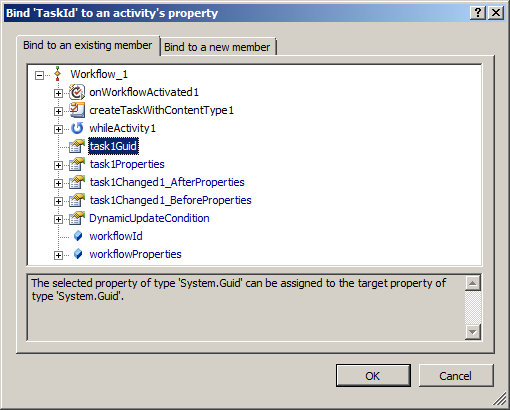
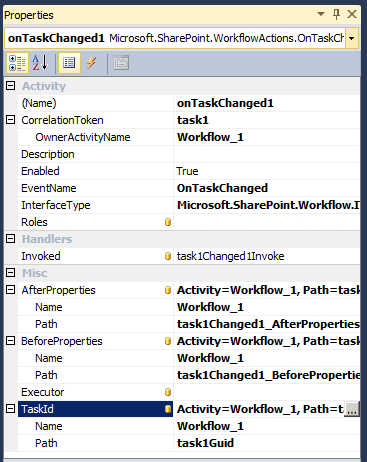
Now we edit the properties of the created “OnTaskChanged” activity. We have to set the “CorrelationToken” as described above. Additionally we specify new property bindings:

  • “AfterProperties” = “task1Changed1_AfterProperties”

  • “BeforeProperties” = “task1Changed1_BeforeProperties”

  • “TaskId” => Bind to the existing member “task1Guid”!!!
    image

In the “Invoked” property add the method name “task1Changed1Invoke”. – The code editor will be opened.

(The activity properties look like this after you finished: image)

21. In the code we add a property at class level:

image

This property we set inside the “OnWorkflowItemChanged” activity. It will contain the information whether the Workflow Task Item we created before was “Completed” by the assigned user.

In the “task1Changed1Invoke” method we set the “isFinished” property.

image

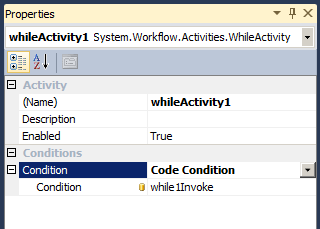
22. Now we need to specify the condition for the “While” activity. In the workflow designer select this activity. In the “Condition” property select “Code Condition” and expand the property. Enter “while1Invoke” in the subproperty with (the same) name “Condition”.

image

In the code editor enter the code for “while1Invoke” like this:

image

The “e.Result” property has to be “TRUE” as long as the while loop should run. It should not run anymore (“e.Result = false”) if “isFinished” is TRUE.

23. In the workflow designer add a “CompleteTask” activity behind the “While” activity. Drag the “CompleteTask” activity from the Toolbar pane into the workflow designer. We get:

image

Select the “completeTask1” activity and edit it’s properties in the Property pane.

  • Bind “TaskId” to the existing member “task1Guid”

  • Create a new member namend “task1Outcome” for binding to “TaskOutcome”

  • Set the “CorrelationToken” to “task1”

24. Whew! Smile

25. Deploy the project. – It deployed successfully ?! – Congratulations!

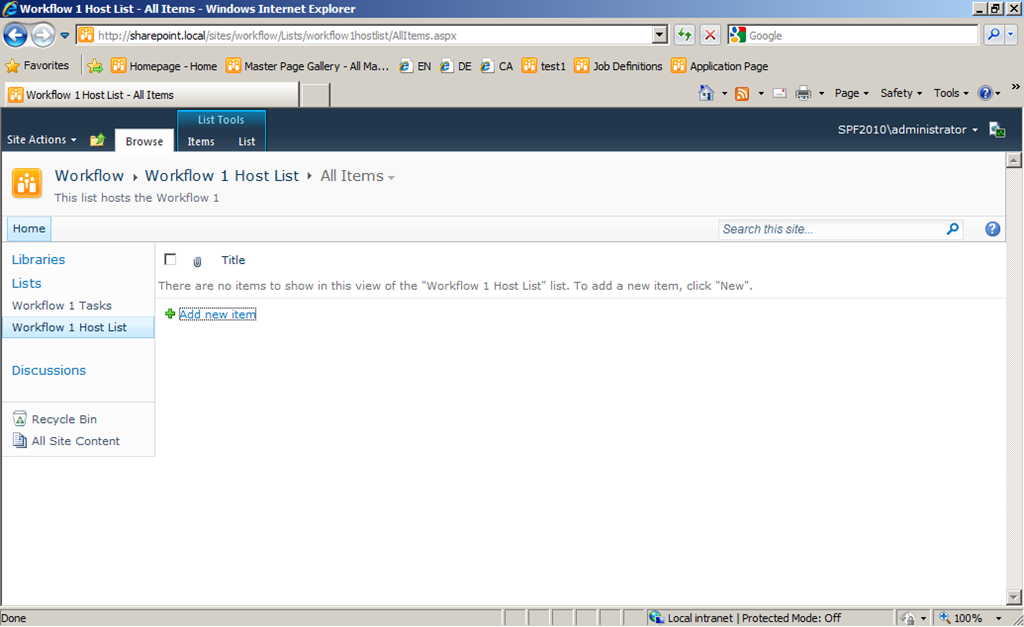
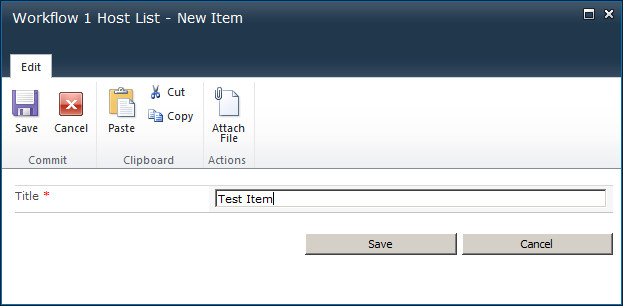
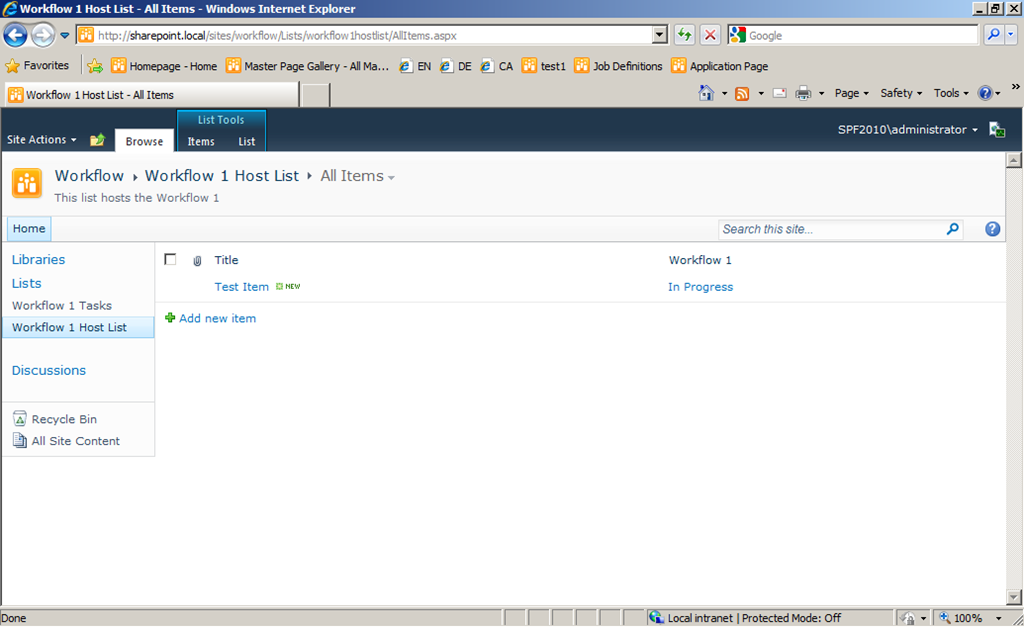
26. Open the browser and navigate to “http://sharepoint.local/sites/workflow”. Open the “Workflow 1 Host List”. Add a new item… – The “Workflow 1” should start automatically.

image

image

(After F5 / page refresh:)

image

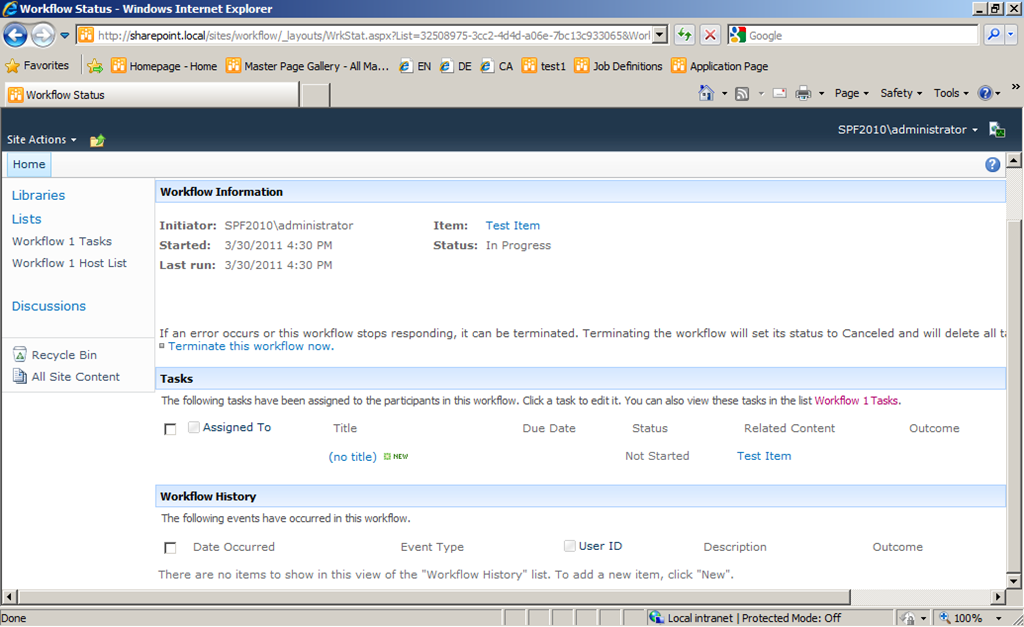
Click “In Process”. We see the Workflow Status page:

image

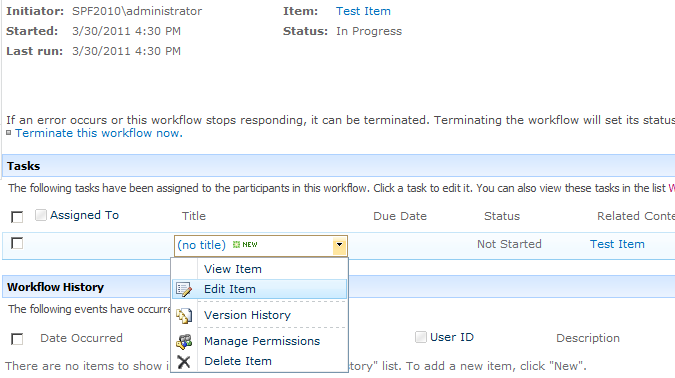
In the “Tasks” section open the context menu of the element “(no title)”. - We did not set a title for the created “Task 1”. This could be done in the method “createTask1Invoke”.

image

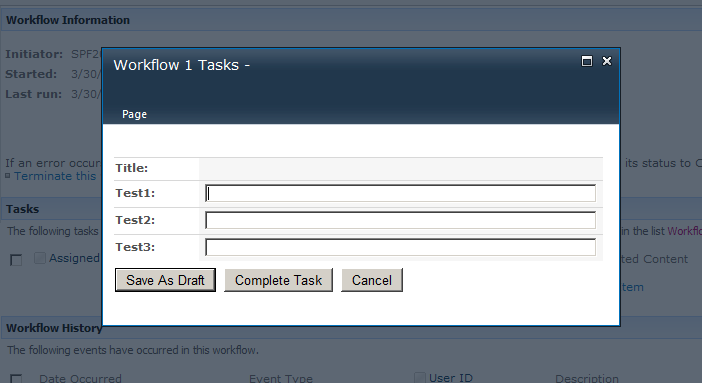
Click “Edit Item”.

There it is!!! :

image

Just edit a property and click “Save As Draft”.

On the Workflow Status page you see that the workflow is still running but was modified (“Last run”).

image

Then edit the task again. Click “Complete Task”.

After that the workflow is “Completed”:
image

27. We have done it! – Now we could add a “Task 2” for this “Workflow 1” where some other data is requested from users.

With that method you will be able to add custom forms for Workflow Tasks. You could also use forms you create with Silverlight !!!

Thank you for your kind attention!

42 comments

Tarjei Apr 6, 2011
Hi! Tried this tutorial. Part 1 worked fine, but part 2 gives me the 'System.InvalidOperationException: The event receiver context for Workflow is invalid'-exception when starting the workflow. All the answers I get from Google is that either the TaskID, CorrelationToken and/or the TaskProperties are incorrect configured. I've checked the code and the workflow and can't find anything wrong with how the TaskID, CorrelationToken and/or the TaskProperties are configured. Any idea would be appreciated. However there are a discrepancy between what you write in step 20 and the corresponding image of the properties of the onTaskChanged1-event. You write that we should use an onTaskChanged-event in the workflow, but in the image it is clearly an onWorkFlowItemChanged-event that are displayed (https://blog.kenaro.com/wp-content/uploads/2011/03/image53.png).
ikarstein Apr 6, 2011
Hi! Thanks for you comment! - You are right: There is (was) an discrepancy between the screenshot and the text. I've corrected the screenshot. - Did you download the complete demo project from codeplex. I tested it now again and it works on my machine. Ingo
Tarjei Apr 8, 2011
I've now downloaded the demo project and that worked fine. A closer look revealed that it actually was something wrong with my correlationtoken-configuration. I configured the correlationtoken for the task as the same correlationtoken for the workflow, so my mistake.
ikarstein Apr 8, 2011
Good to hear ;-) - Thanks for your reply ! Ingo
Kgee Apr 11, 2011
Hi, Successfully Used you guidance thank you very much. One question - how can i get the Custom Field value created in the ASPX and use it in the workflow. I created a Custom Field Called - Revision Date(DateTime Fiels) on the Task form when the date is changed i want to Update the Documeny Library item with the date value selected. ThanXXXx
ikarstein Apr 11, 2011
Hi! You could use the list items property bag. See http://msdn.microsoft.com/en-us/library/microsoft.sharepoint.splistitem.properties.aspx for detailed information. - If you need further assistance please contact me. Ingo
Luca Giornetti Apr 15, 2011
Hi, I successfully used you tutorial thank you very much. I would write (using you tutorial as base) a simple document approval WF: The WF initiator fills a form with x approvers (person or group fields). A task is created for approver1, when approver1 approves the document, a task is created for approver2 and so on until the last approver approves his task. (if only one approver does not approve the task, the workflow ends). Now, How could I do the form for the initiator? Maybe using an initiator form from VS2010? If so, how can I put in it person or groups controls? How could I make the approver approves his task? By clicking on complete button? Thank you very much for your help, Luca Giornetti
ikarstein Apr 24, 2011
Hi Luca, I've created a new Walkthrough for "Association Form" and "Initiation Form". See this article: https://blog.kenaro.com/2011/04/24/walkthrough-create-sharepoint-2010-workflow-association-form-and-initiation-form-in-visual-studio-2010-by-using-application-pages-part-1-of-2/. If you have further questions please post another comment. Ingo
Tony Barnett Apr 19, 2011
Hi Ingo These may be rudimentary questions, but I just can’t seem to find any answers to the following: Who do you check, in Visual Studio 2010 in a Sequential Workflow, if the workflow was started when an item is created or when it has been modified? The reason being is I need to preform different workflow actions depending on if it is created or not? I have tried to IfElse activity but I’m not sure what to check for. Also is it possible to have two different workflows, the first workflow starts on item create, which contains a CreateTask action and the second workflows, which is starts on item modified, which has an UpdateTask which sets properties on the same task which was created in the first workflow. The reason being is I receive an error when I run the second workflow complaining about CorrelationToken. How can I use the same / reference the same CorrelationToken for the two Tasks? Cheers Tony
ikarstein Apr 22, 2011
Hi Tony! Your first question... In the Visual Studio solution you can configure the workflow startup type by using the Properties pane of the "Workflow" project item. See this screenshot: !Screenshot Your second question: You can have multiple workflows on a List or Content Type or... All associated workflows will start as configured. If the are more than one the will run parallel and without any notice of the other. (A "connection" between them could be done in code of course.) You cannot connect them by using CorrelationTokens. Normally a workflow task item is connected to a special workflow instance. If you need to do this you have to store the workflow tasks ID at a diffrent place where both workflow instances can access this information. Ingo
Saiprasad Aug 5, 2011
Hi Ingo, First of all thank you for this aritcle. I Sucessfully implemented this in my project. Custom edit task form works fine with inbulit sharepoint 2010 master pages. But after changing inbulit master page to custom master page, custom task form not works. It thorws below error Error The attribute 'autoeventwireup' is not allowed in this page. Troubleshoot issues with Microsoft SharePoint Foundation. Correlation ID: 50c76a6d-4926-41d7-82be-858b70e48938 Date and Time: 8/4/2011 2:41:58 PM Please help me out to solve this problem. \-Sai
ikarstein Aug 11, 2011
just remove the attribute and register the type as "safetype" in visual studio. - did this solve your problem??
Saiprasad Aug 12, 2011
Hi Ingo, Can you please guide me to registerthe type as "safetype" for my custom task form. \-Sai
ikarstein Aug 12, 2011
Sai, 1\. Copy the Namespace of your Custom Form code behind class to the clipboard. 2\. Go into Solution Explorer. 3\. Create an "Empty Element" Project item. 4\. Add this new project item to your SharePoint Feature (in the VS Solution) 5\. Select the "Empty Element" project item in the solution explorer. 6\. Click "SafeTypes" in the Properties pane. 7\. Add a new "SafeType". Enter the copied namespace in the SafeTypes properties. Than try it. Ingo
Saiprasad Aug 12, 2011
Hi Ingo, This solution worked. Thanks for the quick update.This article really awsome. \-Sai
ikarstein Aug 13, 2011
you are welcome :-)
divya Sep 14, 2011
Hi , I tried with the adding EditTask Form.aspx page in BannerElement as you suggested, and add Module Tag in it's Element.xml But after deployment I am getting Page Cannot found Error , Will you please help me i added the Module in my Feature where Workflow Feature is added, will you please help It's urgent Thanks in Advance
ikarstein Sep 15, 2011
Please check the 14-hive in the file system and search the page in the site structure with SharePoint Designer 2010. – Can you find the page? Can you access them by specifying the page url in the browser directly? I'd think that your module project item is wrong configured!
Rohit Sep 16, 2011
I am able to deploy both the projects, but on adding an item in the "workflow 1 host list" the workflow status remains "Failed on Start (retrying)". I followed all the steps twice, but I get this error still. What might be the reason? Thanks Rohit
Clint Nov 3, 2011
Thanks for the post! I have finished your walk through, and I’m trying to expand on it. Mainly adding different controls (e.g. RadioButtonList, DropDown, CheckBox, etc.), and how to reference them in the workflow code-behind.
Hany Lioun Nasr Dec 11, 2011
I want create a solution or package to install on the production environment, how can I do this?? "please in details" thanks
Alexander Dec 26, 2011
Hi Ingo! One more THANK YOU VERY MUCH for this guide to your Thanks-Box But this guide, like all the others, does not let the assigned approver to say, that document (list item, whatever) is not ready (=not good enought). How do you usually work this out? What task status do you use? How do you inform the wf\_initiator that some more work should be done?
Tom Jan 2, 2012
Hi again Ingo Part 2 was a lot easier than Part 1!! I had to remove the kludge which I added for testing at the end of Part 1 (the line li\[SPBuiltInFieldId.WorkflowVersion\] = 1; ). Once the content type was connected to the workflow, it prevented the OnTaskChanged item from firing, but the problem with 'task locked by running workflow' went away at the same point. Thanks again for your blog.
Luca Menegozzo Feb 9, 2012
Great post !! Thanks.
Pooja Mar 15, 2012
Hi, Thanks for the great article. But I have one problem, I want to use an infopath basd form as Template type for the Host List being created. Can you give me some clue on how should I go about acheiving that?
See this link Jun 9, 2012
I do trust all the ideas you've introduced on your post. They're very convincing and can certainly work. Nonetheless, the posts are very brief for novices. Could you please lengthen them a bit from next time? Thank you for the post.
mkk Jun 19, 2012
Thanks Karstein for detailed blog post. I completely followed blog post and able to successfully create the workflow, now i am in the process of changing the workflow to approval/reject and added association and initiation pages as well. My question is when the workflow in rejected it need to go back to initiator to re-submit (after making necessary changes) and then it should goto approver again. What is the way/best way to do this, can you provide any sample for this or any ideas.
Istvan Aug 5, 2012
Dear Mkk! Coluld you share it your Approve code? Thx, Istvan
kashek85 Aug 13, 2012
Reblogged this on My Sharepoint Experiences.
Ip zufa Sep 25, 2012
hi ikarstein, your demo is great. however, there is a bug with 'Workflow 1 Tasks', if you add a new item in this list by 'Add new item', then you modify it. the first time of modifiction is all right, but the second time of modification, you will get error "This task is currently locked by a running workflow and cannot be edited. ". the reason is the currentitem\[WorkflowVersion\] = 512. then the system think it has been locked. but if you do 'currentitem\[WorkflowVersion\] = 1', then you can update it. but , the item won't be fired onTaskchanged event. it only happended for those creating by 'Add new item'. the item created by workflow is working fine. but, i haven't figure out how to fix it.
AJ Nov 18, 2012
“Failed on Start (retrying)????
F. Mar 15, 2013
I had the same problem. Make sure you DONT use the same corelation token as in OnWorkflowInitiated action.
Soni Dec 5, 2012
Dude, I am kinda confused here. Lets say I have to create 2 custom task forms and for that probably i have to create to content types. Another confusion is that tasks which are being created does not reside in the Tasks List, instead it resides in our custom task list. So how we are going to inform user that there has been task assigned to you . And if there are 2 content type, does that mean that i have to create 2 custom task lists for this ?
Michael G Dec 15, 2012
Ho I. Karstein, Thanks so much for this tutorial. I downloaded a copy of demo code. I went through it step by step using website's info. I must say I am so pleased. It runs seamlessly. If anyone is having problems, I would advise them to download a copy of demo code. I now understand how custom task form is implemented. My next task is to use your blog to learn how to use custom association and initiation forms. Keep on with your good work and sharing your knowledge with mankind
Ravi Apr 18, 2013
Super. This worked. You are giving very high level steps, but very cleanly and neatly.
MakPharell Jun 11, 2013
Hi, this is a great post! I managed to get this to work. I have one question, I now need to bind this workflow to a content type (Document Library), then I went on to change the association category of Workflow1 by editing its Elements.xml From: List To: ContentType;0x01010100CE63A3373ED6E94993A0DE6689B745C5 This enables me to see the workflow under workflow templates. Then I manually added this workflow template to my content type document library, the problem is that when the workflow is run, it creates the workflow task in the default task list and not the custom one that we created. My workflow tasks need to be created on the task list that we created so that I can be able to use the custom form to edit the task. Please help.
Nidhi Oct 9, 2013
Hi, I used this article to build a similar workflow. but whn i am deploying it, i am getting following error. "Path needs to point to valid member" for all the activities i have created. it gets deployed but it doesn't create the workflow. can you please help me with this.
James Hodges Dec 15, 2013
I just wanted to thank you for taking the time to post this walkthrough. I've been hitting the books for many months as time permits trying to figure this out on my own but haven't made very good progress. This article seems to be the only source out there that explains how to do a workflow with an ASPX task form in Visual Studio.
Venkat Apr 7, 2014
Hi, Is it possible to create the above sequential workflow using VS 2012 SharePoint 2013 workflow (XAML) model. How to achieve it.
Dario Nov 15, 2014
GReat article, unfortunately I cannot see images.... :(
ikarstein Mar 5, 2015
they are back. sorry :-(
zach Jun 19, 2015
Hi, I've been trying to make a workflow for quite some time now and keep running into the same error someone brought up a few years ago...Whenever I try to deploy it gives me the error "Path not valid, path needs to point to valid member". It deploys, but the workflow doesn't work (sends an email on item change). The paths are definitely valid, but for some reason it doesn't recognize them on deploy. Any ideas on how to fix this? Thanks mate!

Leave a comment

Your comment is reviewed before it appears. Your name is shown with the comment; your email is required for moderation but never published.